Services define what you offer, how much you charge, how long appointments take and who can book them. You create a service in four steps, and Petboost saves it as a draft you finish on its own page before customers can book it. The link https://business.petboost.com/services?action=create opens the create wizard straight away, which is handy as a bookmark.
Choose a service type
Every service has one of four types, and the type cannot be changed after you create the service. The wizard shows each type with the line below.
| Type | What the wizard says | Use it for | Examples |
|---|---|---|---|
| Initial | New clients must book this before other services. Existing clients can skip it when you turn the requirement off for them. | Meet-and-greets, behaviour assessments, first consultations and first visits that need extra time or a different price | Initial Grooming Consultation, First Visit Assessment |
| Regular | Standard recurring service | The most common type: anything customers book again and again, and your core offerings | Dog Grooming, Group Walk, Daycare |
| Add-on (extras) | Extra / add-on booked with another service | Optional extras, upgrades such as premium shampoo or extended play time, and treatments such as flea and tick or de-shedding | Nail Trim Add-on, Teeth Brushing, Flea Treatment |
| Stay | Overnight or extended care service | Overnight boarding, multi-day pet sitting and extended daycare, priced per night, per day or per 24 hours rather than by the hour | Boarding, Daycare Extended Stay |
An add-on cannot be booked on its own; it goes with a main service, has no time slot of its own and does not lengthen the appointment. If clients also need to book that extra by itself, such as a drop-in nail clip, keep the add-on and create a separate Regular service. See Add-Ons.
An Initial service does not block anything by itself. A Regular or Stay service asks for it first when it names the Initial under Service Prerequisite, described below. An Initial service cannot be booked as a recurring series.
Group classes and courses
Do not create a Regular service for puppy school, scentwork, obedience or any multi-lesson group class. Create a course template instead: open Courses, select New, then New Course Template. Publishing a course from that template creates the lesson service, and staff enrol pets from Courses, not from New > Appointment on Appointments.
Use a Regular service for a single appointment, including 1:1 training. See Courses versus services.
Create a service
Create a service for each thing you sell at its own price or length.
- Open Services, select Add New, then New Service.
- On Basic Info, enter the Service Name, choose the Service Type and pick a Category. To add a category, select Create new category under the picker.
- Enter the Description and the Short Description, then select Next.
- On Pricing & Timing, enter the Price and choose the Duration. If the price is a starting point, switch on "From" pricing. A Stay service asks for its Pricing Mode and rate here instead.
- Select Next. Optional: on Image, add the Service Image.
- Select Next. On Team & Resources, choose Required, Optional or Not used under Team Members and under Resources, and pick who and what can deliver the service.
- Select Create Service.
Petboost creates the service as a draft and opens it. A draft is hidden from customers and your booking page until you turn on online booking for it, described below.
On Team & Resources, Spots used sets how many places one booking takes; most services use 1 and a large dog service might use 2. For a service you deliver at the customer's place, switch on Require customer to provide a street address? under Enable Mobile Service. An add-on takes its team member and resource from the main service, so it offers only Optional and Not used. A Stay service uses resources instead of team members.
Tip
Name the service so customers know what they are getting, such as "Full Groom (Large Dogs)", "Small Dog Walking" or "Premium Spa Package". Avoid vague names like "Service 1" and internal codes customers will not understand, and add the size when the price or length depends on it.
Write the description with AI
Generate with AI sits beside Description and Short Description in the wizard, and beside Short Description and Full Description on a saved service. It opens Grazi with a draft written from the service name, up to 90 characters for the short description and 250 for the full one. On a field that already has text, the button reads Improve with AI and rewrites what is there.
- Open Services, select Add New, then New Service.
- Enter the Service Name.
- Select Generate with AI beside the field.
- Read Grazi's draft, then select Insert to put it in the field.
Enter the service name first, because the draft is written from it and from nothing else. Review the draft and add details only your business knows. For a Full Groom (Large Dogs), a short description might read "The works: bath, blow, ear clean, pawdicure, full body & face scissor trim + 30 min brushing." and a full description "The works! Bath, blow, ear clean, pawdicure, full body and face scissor trim, plus 30 minutes of brushing knots. Prices are 'from' and final fee depends on size, time and coat condition."
Copy a service
Copying is quicker than starting again when a new service is close to one you have, such as a large dog version of a groom.
- Open Services, select Add New, then New Service.
- On Basic Info, select Clone from another service.
- In Clone from Existing Service, choose the service and select Pre-fill Form with Selected.
- The wizard reopens as Clone Service, with the name ending in (Copy). Change the name, price and anything else that differs.
- Select Create Service on the last step.
Import services in bulk
For a long list of services, start from Petboost's import template.
- Open Services and select Add New.
- Select Bulk Import Services & More. The import template opens as a Google Sheet in a new tab.
- Fill in your services on the template.
Find and open a service
Services lists every service with its type, price, duration, a Self-Service or Staff Only badge, and its Rules, such as Vaccination Required.
- Open Services.
- Select Manage on the service, then Manage Service.
- Choose the section you want to change.
A saved service opens on a page of sections, each its own tab. Changes collect at the foot of the page under Pending Changes. Select Publish Changes, tick the box in Before You Publish, then select Publish Changes. Before You Publish lists each change under Applies to all appointments, Only applies to new bookings or Takes effect straight away, so you can see which bookings it reaches before it goes live.
| Section | What it holds |
|---|---|
| Basic Info | Service name, description, type, category, and image. The type shows as a badge beside the service name and cannot be changed |
| Pricing & Payments | Base price, rate tiers, charge method, deposits, and pre-hold funds. A Stay service sets its Pricing Mode here: Number of nights, Number of days or Duration-based |
| Duration & Timing | Duration, start times, arrival windows, padding, and booking notice, including a Regular service's Fixed Start Time and a Stay service's Check-in & Check-out Windows |
| Team & Resources | Assigned team members, resources, and capacity settings |
| Booking Settings | Self-service booking, team member selection, and mobile service |
| Automatic Actions | Instant confirmation, auto-start, auto-complete, and auto-pay |
| Notifications | SMS and email for bookings, reminders, and cancellations |
| Policies & Paperwork | Cancellation policy, terms and conditions, and waivers |
| Fields & Forms | Required booking fields and intake forms for this service |
| Who Can Book | Species, breed, weight and age eligibility, prerequisites and add-on pairing |
| Notes Templates | Default grooming notes and appointment note templates |
To organise services into categories, such as Dog Grooming, Dog Boarding, Dog Daycare, Dog Walking, Cat Grooming, Pet Training and Pet Sitting, select the settings menu beside Add New on Services, then Manage Categories. Categories group related services, which keeps a long list tidy for your team and easier for customers to browse.
Turn on online booking for a service
A new service stays a draft, marked Staff Only on Services, until you turn on online booking. Your team can book a Staff Only service; customers cannot see or book it.
- Open Services, select Manage on the service, then Manage Service.
- Choose Booking Settings.
- Under Self-Service Booking, switch on Online booking. If online booking is off for your whole business, Turn on business online booking? opens: select Yes, turn it on.
- Select Publish Changes, tick the box in Before You Publish, then select Publish Changes.
The badge beside the service name changes from Draft to Published, and the service reads Self-Service on Services. While a service is unpublished, its summary beside the sections also shows Not published yet with Publish Now, which turns on online booking in one step. Online booking needs a plan with self-service booking.
Add a video, a label and key features
These extras show when a customer opens the service on your Showcase page: the Value Feature Label under the price, the Key Features as a list of what is included, and the video.
- Open Services, select Manage on the service, then Manage Service.
- Choose Basic Info and switch on Advanced options.
- Under Listing Details, paste a YouTube or Vimeo link into Service Video URL.
- Under Service Features, enter a Value Feature Label of up to 50 characters, such as Most Popular, Best Value, Premium, New, Limited Time or Customer Favourite.
- Select Add Feature for each of up to five Key Features, one line of up to 100 characters each.
- Select Publish Changes, tick the box in Before You Publish, then select Publish Changes.
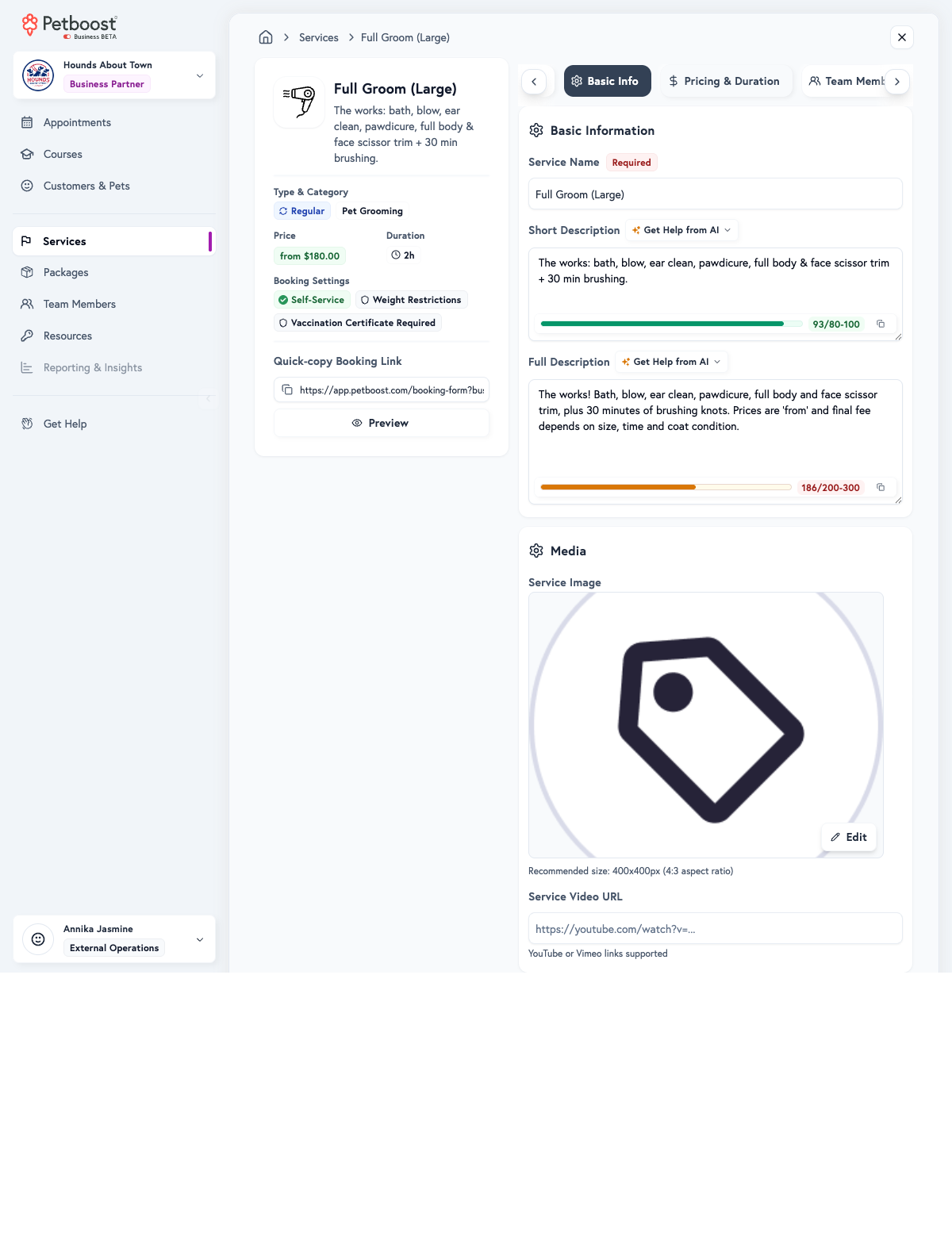
Basic Info also holds the Service Image, shown in a 4:3 frame, so a 4:3 photo such as 800 x 600 pixels fits it best. Under Advanced options, Scheduler Colour sets the colour the service uses on the calendar in place of its category colour.
For a full groom, key features might read: complete bath with premium shampoo, professional blow dry and brush out, nail trim and ear cleaning, full body scissor trim, 30-minute coat de-matting included. For a dog walk: 1-hour neighbourhood walk, check-in and check-out with photo updates, fresh water provided, maximum 4 dogs per walker.
Tip
Use a label on one or two services per category at most, only where it is true, such as your real best seller, and keep it up to date. Make key features specific, such as "30-minute de-matting" rather than "grooming", say "includes" rather than "might include", lead with what customers care about most, and format them the same way across services. For the video, show your real work in under two minutes: a time-lapse of a groom, a tour of your space, your team, a before and after, or a walkthrough of the service. A phone video is enough; add captions for people watching without sound.
Ask for an Initial service first
To make a new pet sit an assessment or first visit before a regular service, set the Initial service as the regular service's prerequisite. For example, a Regular "Full Groom" can require an Initial "First Visit Assessment" of 30 minutes at $25, training sessions can require a one-hour Behaviour Evaluation at $50, and overnight boarding can require a facility tour and meet-and-greet.
- Open Services, select Manage on the regular service, then Manage Service.
- Choose Who Can Book and switch on Advanced options.
- Under Service Prerequisite, switch on Require Prerequisite Service.
- Choose the Initial service, then choose What counts as met.
- Select Publish Changes, tick the box in Before You Publish, then select Publish Changes.
The rule is checked per pet. A pet that has not met the prerequisite is not offered the regular service online, and a pet that has met it books freely. Each service carries its own prerequisite. To let one household skip it, switch on Skip Service Prerequisites on the Settings & Overrides tab of the customer's profile. Your team can still book the service for a pet that has not met the prerequisite. See Service prerequisites for every option.
Automate a service's bookings
Automatic actions move a booking through its statuses without anyone touching it. Instant confirmation is on the service's Automatic Actions tab, with its default for every service on Settings > Booking Settings. The other four are set for every service on Settings > Automatic Actions, and on the service's own tab under Advanced options.
| Switch | What it does | Suits |
|---|---|---|
| Instant confirmation | Auto-confirm bookings without manual approval, so they skip Pending | Services with standard pricing and low risk |
| Auto-start appointments | At the scheduled start time, Confirmed moves to In Progress | Services with fixed start times |
| Auto-complete appointments | When the appointment duration ends, In Progress moves to Completed | Services with predictable durations |
| Auto-finalise appointments | Generate the invoice and prepare for payment | Services with fixed pricing |
| Auto-pay invoices | Charge card on file 30 minutes after finalisation | Customers with a stored card, and regular clients |
Deposits and Pre-hold funds are money settings on Pricing & Payments, not automatic actions. Pre-hold funds holds the funds on the card on file 72 hours before the appointment without charging them, which protects against no-shows and suits high-value services.
Set automatic actions for every service
- Open Settings, then Automatic Actions.
- Switch on the actions you want.
- Select Publish Changes, tick the box in Before You Publish, then select Publish Changes.
A service that keeps its own value is listed under the switch, and its own value wins.
Change automatic actions for one service
- Open Services, select Manage on the service, then Manage Service.
- Choose Automatic Actions.
- Switch Instant confirmation on or off.
- Switch on Advanced options to reach Auto-start appointments, Auto-complete appointments, Auto-finalise appointments and Auto-pay invoices.
- Select Publish Changes, tick the box in Before You Publish, then select Publish Changes.
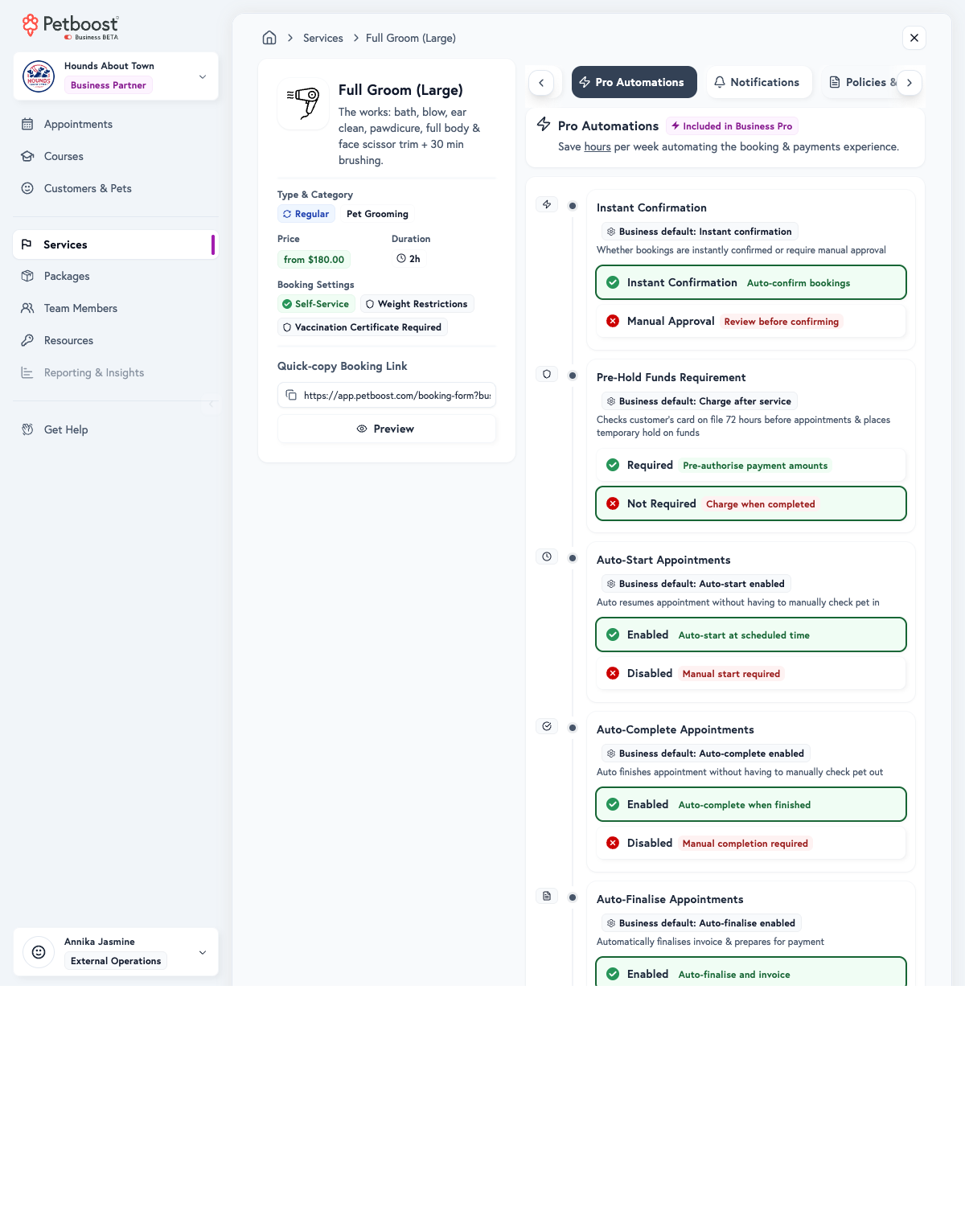
Auto-pay invoices needs a card on file for the customer. A customer's profile can override Pre-Hold Funds and Auto-Pay Invoices for that customer, under Payment Automation on its Settings & Overrides tab. Each automatic action is recorded against the appointment.
Tip
Turn on every action for high-trust services with fixed prices. For variable pricing, such as grooming, use auto-start and auto-complete but leave auto-finalise and auto-pay off, so you can adjust the price before the invoice is final. If you are just starting out, begin with instant confirmation only and add the others as you gain confidence.
Pricing and duration
Use "From" pricing where the final cost depends on the pet's size or breed, coat condition, time taken or add-ons, and adjust the price at booking. Use a fixed price for standard services such as group classes, set-length walks and standard daycare rates. For prices that change with the pet, see the Service Pricing Guide.
Set a duration that matches the real time needed, because scheduling conflicts come from durations that are too short. For preparation, check-in, cleaning or notes time, add Appointment Padding on the service's Duration & Timing tab: Padding Before for setup and check-in, Padding After for cleaning up and check-out. Padding stops bookings running back to back.
Common setup examples
A grooming business might start with these services.
| Service | Type | Duration |
|---|---|---|
| Full Groom - Small | Regular | 1h 15m |
| Full Groom - Medium | Regular | 1h 30m |
| Full Groom - Large | Regular | 2h |
| Bath & Blow - Small | Regular | 45m |
| Bath & Blow - Medium | Regular | 1h |
| Bath & Blow - Large | Regular | 1h 15m |
| Nail Trim | Add-on | 10m |
| Teeth Brushing | Add-on | 5m |
A dog daycare might start with these.
| Service | Type | Duration |
|---|---|---|
| Full Day Daycare | Regular | Full Day |
| Half Day Daycare | Regular | Half Day |
| First Visit Assessment | Initial | 1h |
| Boarding - Overnight | Stay | 1d |
A dog walker might start with these.
| Service | Type | Duration |
|---|---|---|
| Group Walk - 4 dogs max | Regular | 1h |
| Private Walk - Solo | Regular | 30m |
| Extended Walk | Regular | 1h 30m |
Common questions
How many services should I create?
Start with your core offerings, five to ten services, and add more later. Too many services can overwhelm customers.
Can I change service details after creation?
Yes, every setting except the service type can be changed at any time. Before You Publish shows whether each change applies to all appointments, only to new bookings, or straight away.
Should I create separate services for different dog sizes?
Yes, if the price or duration changes a lot by size. Use the weight rules on Who Can Book so each pet sees the right service.
What's the difference between Add-on and Regular services?
An add-on cannot be booked alone; it goes with another service. A Regular service can be booked on its own.
Can services have different prices for different pets?
Use "From" pricing and adjust the final price at booking for the pet, or create a service for each size.
How do I organise 50 or more services?
Use categories throughout, and group size variants, such as Small, Medium and Large, inside a clear category structure.
Related FAQs
Have questions about services? See these commonly asked questions:
- How do I control service visibility?
- How do I set up different service tiers (Gold, Silver, Bronze)?
- How do I show Morning or Afternoon instead of clock times?
- Can I hide the duration from customers entirely?
- How do payment processing fees work?
- Can I use my bank EFTPOS terminal instead of Stripe?
- How do I set up cancellation fees for services?
- Are late cancellations and no-shows charged the same fee?
- Should I use fixed or variable pricing?
- How do multi-pet discounts work?
Next steps
- Learn about Service Configuration for pricing and duration
- Configure Team & Resource Assignment for service delivery
- Set up Booking Rules for customer self-service
- Configure Settings → Automatic Actions for account-wide automation defaults
- Manage services without online booking in Internal-Only Services
- Create service-specific links in Booking Links & Deep Linking
- Review FAQ for troubleshooting and tips