Accurate pricing and duration give customers the right quote and keep your schedule realistic. Price settings live on a service's Pricing & Payments tab and time settings on its Duration & Timing tab. Every change waits under Pending Changes until you select Publish Changes, tick the box in Before You Publish, then select Publish Changes.
Set a fixed or "from" price
A fixed price is what every customer pays. A "from" price is a starting point you adjust once you see the pet.
- Open Services, select Manage on the service, then Manage Service.
- Choose Pricing & Payments.
- Under Service Pricing, enter the Base Price.
- For a starting price, switch on Display as "from" price. Leave it off for a fixed price.
- Select Publish Changes, tick the box in Before You Publish, then select Publish Changes.
With Display as "from" price on, a blue badge shows the price as "From" and customers see it that way while they book.
| Pricing | Suits | Examples |
|---|---|---|
| Fixed | Standard services with consistent effort, group classes and courses, walk-in services, and services where the pet makes little difference to cost | Group Dog Walk $40.00, Half Day Daycare $90.00, Basic Nail Trim $15.00 |
| "From" | Grooming, where coat condition, matting and time vary; size-dependent prices without separate services; services with add-ons | Full Groom (Large) from $180.00, Boarding Stay from $120.00/night, Training Session from $85.00 |
Change the price on one booking
For a "from" price, or any one-off change, set the final price on the booking's invoice. Review the time taken and the coat's condition, then adjust. The catalogue price is not touched, and the price when the invoice is finalised is what is charged.
- Open the booking from Appointments.
- On the invoice, type the new price over the service line.
- Under Notify customer?, choose Send notification or Update silently.
- Select Save Changes.
Price each size as its own service
For clear size categories, such as Small, Medium, Large and X-Large, or service levels such as Basic, Standard and Premium, create one service per price point. Each size keeps its own price and duration, its own weight rule on Who Can Book, and its own line in reporting, and customers see a clear price.
| Service | Price | Duration |
|---|---|---|
| Full Groom (Small) | $130.00 | 1h 15m |
| Full Groom (Medium) | $145.00 | 1h 30m |
| Full Groom (Large) | $180.00 | 2h |
| Full Groom (X-Large) | $245.00 | 2h 30m |
- Open Services and create the first size, for example Full Groom (Small).
- Select Add New, then New Service.
- On Basic Info, select Clone from another service and choose the first size.
- Rename the copy for the next size, change its price and duration, and select Create Service.
- On the new service's Who Can Book tab, set its weight rule.
- Repeat for each size.
Offer multi-pet discounts
Multi-pet rates lower the price per pet when a customer books more than one pet for the same service. You set a rate per pet for each pet count, and Petboost applies that rate to every pet in the booking once the count is reached.
- Open Services, select Manage on the service, then Manage Service.
- Choose Pricing & Payments and switch on Advanced options.
- Under Multi-Pet Discount Pricing, select Add Rate. It stays greyed out until the Base Price is above $0.
- Set Min Pets and Max Pets, and enter the Per Pet Price.
- Select Add Rate again for the next pet count.
- Select Publish Changes, tick the box in Before You Publish, then select Publish Changes.
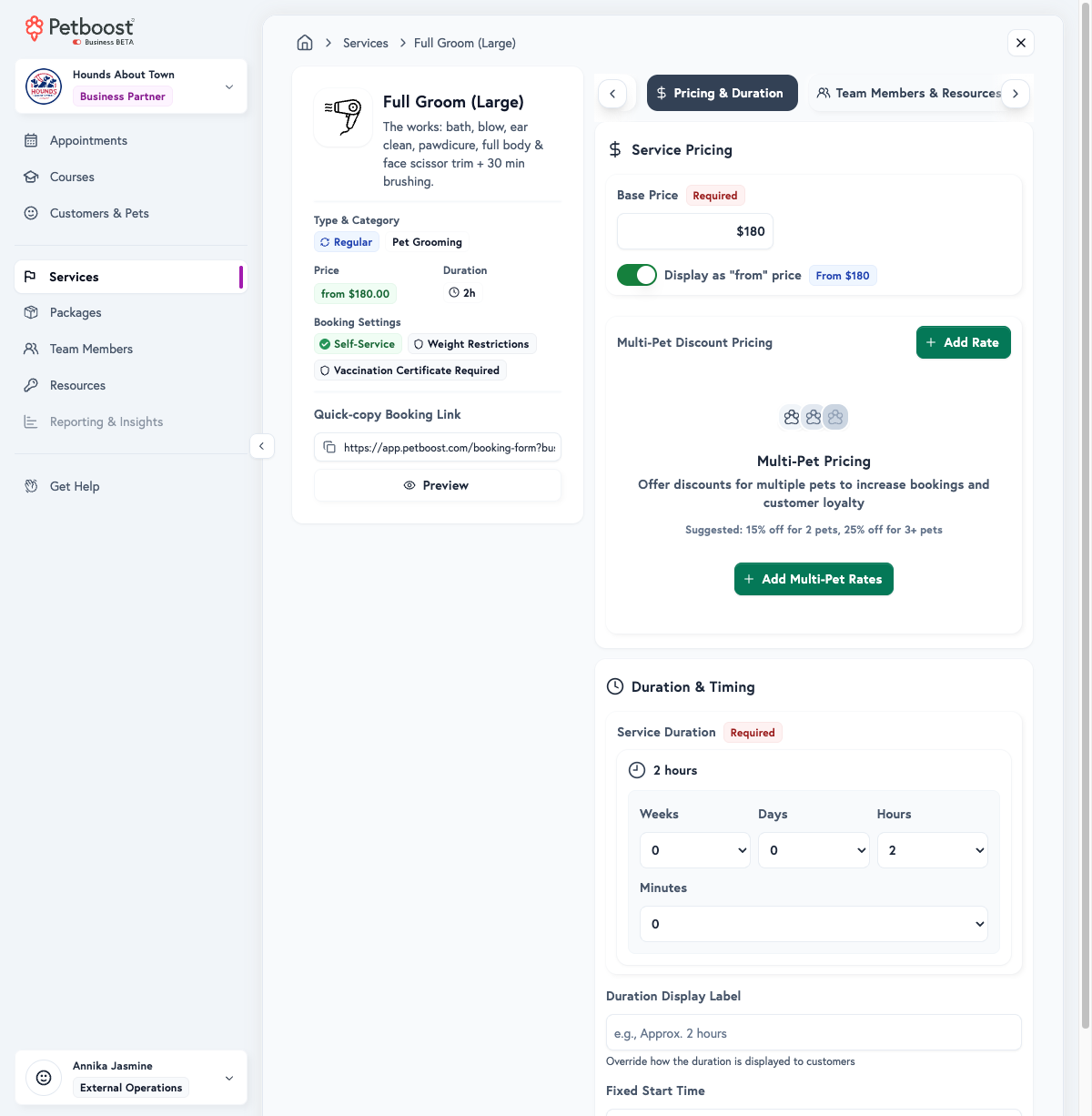
The first rate starts at 2 pets and is suggested at 15% below the base price; the next starts at 3 pets and is suggested at 25% below. Each rate shows its saving as a percentage off and as an amount. One pet pays the Base Price. A Stay service has the same idea under Multi-Pet Discounts, with Add Tier.
Trap
The rate is the price per pet, not the total. Total = rate per pet x number of pets. To charge $150 for two dogs, set the rate per pet to $75, not $150.
For example, a Full Groom with a base price of $100.00 and two rates charges:
| Pets | Rate per pet | Total | Saving |
|---|---|---|---|
| 1 | $100.00 | $100.00 | None |
| 2 | $85.00 | $170.00 | $30.00 |
| 3 | $75.00 | $225.00 | $75.00 |
While they book, the customer sees each pet at the multi-pet rate, the total and what they saved.
Tip
A rate 10 to 15% below the base price for 2 pets encourages customers to book both, and 20 to 30% below for 3 or more rewards larger families. Keep the base price fair so the discount starts from a reasonable price. Multi-pet discounts suit standard grooms and baths, walks with several dogs, training sessions and daycare. They may not suit boarding, where each pet takes a full space and resources, specialised services where each pet needs full attention, or medical services.
Each service has its own rates per pet, so different services can have different rates. The rates apply when several pets book the same service in the same appointment, not across different services. With a package, the multi-pet rate applies to the service price before package credits. Rates are set per service, and most businesses set them on main services rather than add-ons.
Set the service duration
The duration is the time blocked on the schedule for the service: the hands-on time, the setup and clean-up done within the service, and the usual variation. It does not include padding, which is set separately, or extreme cases.
- Open Services, select Manage on the service, then Manage Service.
- Choose Duration & Timing.
- Under Service Duration, set the Service Duration in minutes, hours or days.
- Optional: enter Duration shown to customers.
- Select Publish Changes, tick the box in Before You Publish, then select Publish Changes.
Typical durations are 1h 30m for a medium dog groom, 1h for a group walk, Half Day for half-day daycare and 1d for boarding. A Stay service shows Duration Limits with Minimum Duration and Maximum Duration instead.
A duration that is too short makes appointments run over, throws the schedule out, rushes staff and causes back-to-back conflicts. One that is too long leaves gaps and fewer appointments per day. Set the real service time with minor variations, use padding for setup and clean-up, and adjust from what you see day to day.
Petboost has no duration multiplier. A pet attribute can carry a Duration change that adds or removes time for pets with that attribute, set on Pet Attributes. For a single booking, change the time on the booking itself.
Duration shown to customers
Duration shown to customers replaces how the duration is shown, for example "Approx. 2 hours" or "Full day" instead of "9h". Leave it blank to show the duration as it is, such as "2h", "1h 30m" or "Full Day". Use it when the time varies, to set expectations, or when the default wording does not suit you: "Approximately 2 hours", "2-3 hours depending on coat condition", "Half day (4-5 hours)", "Full day of fun!" or "About an hour". Keep it clear and accurate.
Add padding before or after a service
Appointment Padding adds time before or after the service for preparation, clean-up and the change-over between appointments, so bookings do not run back to back. Padding is blocked on the schedule and is not charged; the service price covers it.
- Open Services, select Manage on the service, then Manage Service.
- Choose Duration & Timing and switch on Advanced options.
- Under Appointment Padding, select Set Custom Duration for Padding Before or Padding After. Without it, the service uses the business default.
- Choose the length.
- Select Publish Changes, tick the box in Before You Publish, then select Publish Changes.
Use Padding Before to check pets in, read special instructions, prepare equipment and welcome customers, and Padding After to clean, update notes, check pets out and get ready for the next appointment.
| Padding | Suits |
|---|---|
| None | Group classes, where it is built into the duration, and services with natural gaps |
| Light, 15 minutes | Standard grooming, dog walking and quick services |
| Moderate, 30 minutes | Complex grooming, first-time services and high-turnover daycare |
| Heavy, 45 minutes or more | Boarding check-in and check-out, services needing deep cleaning and multi-pet appointments |
Choose the times customers see
Times customers see changes what customers see on the booking page and in reminders. It does not restrict which slots exist. It is on the service's Duration & Timing tab, not on Booking Settings.
The card has one panel per side of the visit, named by what the customer does. A venue service shows Drop-off then Pick-up. A mobile service shows Pick-up then Drop-off. Each panel has Customers see, with three modes:
| Mode | What customers see |
|---|---|
| The exact time | The booked minute, for example 9:00 AM. Default. |
| A window | A clock window. Under the line that starts For a and names the example booking time, set the two times. The window moves with each booking's own time. Wording is optional. |
| A message instead of a time | The Wording only, for example Morning. No clock. Duration is hidden. |
The panel shows what the customer will read for an example booking, and the message at the top of the card is the confirmation they receive.
To show Morning or Afternoon instead of 9:00 AM:
- Open Services, select Manage on the service, then Manage Service.
- Choose Duration & Timing and find Times customers see.
- In the Drop-off panel (Pick-up on a mobile service), under Customers see, select A message instead of a time.
- In Wording, type the words the customer should see.
- Select Publish Changes, tick the box in Before You Publish, then select Publish Changes.
- Repeat on every AM / PM or zone copy of that service.
Do not select A window if the goal is to hide the clock.
A session Label with Show on booking page on adds a badge next to 9:00 AM. The clock stays, and that badge wins over A message instead of a time. Leave Show on booking page off if you are hiding the clock. See Setting up your sessions.
If the customer books two services on the same booking, the time list follows the first service on the slot. A message instead of a time on the second service does not hide the first service's times.
Staff still see the scheduled times on the appointment.
Set a fixed start time
Fixed Start Time locks a service to a single start time each day. Pet owners see one bookable time, not a list of slots. The clock still shows unless A message instead of a time is also on. Use it for a group class or activity that starts at one set time, or a daycare day where every dog starts together.
- Open Services, select Manage on the service, then Manage Service.
- Choose Duration & Timing and switch on Advanced options.
- Under Fixed Start Time, select the time.
- Select Publish Changes, tick the box in Before You Publish, then select Publish Changes.
The time must fall inside the working hours of the team members or resources assigned to the service. If it falls outside them, no times show at all. The time must also line up with your Booking Interval: shift starts round up to the next interval first, so a 7:30 start on a 60-minute interval becomes 8:00 and no times show. Same-day booking closes once the fixed time has passed. Capacity still applies, and when the single time is full, the day shows as unavailable.
Trap
Do not use Fixed Start Time to show an arrival window such as "drop off 7:30-10:00am", or Morning / Afternoon with no clock. Use Times customers see: A window shows a window and A message instead of a time hides the clock. Neither restricts how many slots exist.
Pricing approaches by business type
| Business | Approach | Example services | Why |
|---|---|---|---|
| Grooming | A service per size, each with a "from" price | Full Groom (Small) from $130.00, 1h 15m; (Medium) from $145.00, 1h 30m; (Large) from $180.00, 2h; (X-Large) from $245.00, 2h 30m | Customers see the expected range and clear sizing, and you can adjust up for severe matting or extra time, or down for an easy coat |
| Dog walking | Fixed prices | Group Walk (max 4 dogs) $40.00, 1h; Private Walk (Solo) $150.00, 1h; Extended Walk $180.00, 1h 30m | Customers expect fixed rates, compare options easily and decide quickly |
| Daycare | Fixed prices by day type | Full Day Daycare $100.00, Full Day; Half Day Daycare $90.00, Half Day; Boarding (Overnight) $120.00, 1d | Fixed rates are the norm, revenue is predictable and customers know what to expect |
| Training | Fixed prices with packages | Single Training Session $85.00, 1h; 5-Session Package $400.00 (save $25); 10-Session Package $750.00 (save $100) | Packages encourage commitment, the value is clear and prices are predictable |
A grooming business can instead use one "Full Groom" with a wide "from" range, $130 to $245, and set the price on each booking.
Copy settings to other services
Copy one section's settings from a service to others, such as setting up size variations of the same groom.
- Open Services, select Manage on the service to copy from, then Manage Service.
- Choose the section, such as Pricing & Payments, and select Copy settings beside its name.
- On Select Fields & Services, tick the fields to copy and choose the Target Services.
- Select Review Changes.
- On Review & Confirm, check the changes, then select Copy Settings to and the number of services.
Only the selected fields are overwritten. Copy settings is on Basic Info, Pricing & Payments, Duration & Timing, Team & Resources, Booking Settings, Policies & Paperwork, Fields & Forms and Who Can Book.
No-Show Protection and Upfront Payments
Petboost gives you two ways to secure a booking before the appointment:
- Deposits: a charge taken when the booking is made, online or by your team, either the full booking total or part of it
- Card on file with pre-authorisation: nothing is charged up front; the card is verified and funds are held 72 hours before the appointment
Only one applies to any given booking. If a booking takes a deposit, Petboost does not also pre-authorise the balance on top of it.
Take a deposit on a service
Set your business default under Deposits on Settings > Pricing & Payments, then override it per service. Each service shows whether it matches the business default or differs from it.
- Open Services, select Manage on the service, then Manage Service.
- Choose Pricing & Payments.
- Switch on Deposit to give this service its own rule.
- Choose Pre-pay in Full, Partial deposit or No deposit. For Partial deposit, choose a percentage or a fixed amount.
- Select Publish Changes, tick the box in Before You Publish, then select Publish Changes.
- Pre-pay in Full charges 100% of the booking total when the customer books, including any card or booking fees you pass on to them
- Partial deposit charges either a percentage of the booking total (5% to 95%, in 5% increments) or a fixed dollar amount, plus any card or booking fees you pass on. For 100%, use Pre-pay in Full instead
- No deposit is a per-service override, so a service can opt out of a business-wide deposit. It appears when your business default charges a deposit
Whatever the customer pays up front reduces the balance owed, so only the remainder is charged at the end of the appointment.
When the pet owner books online, Petboost takes the deposit at that moment. They must have a card on file and the charge must succeed, or the booking is refused. When the owner books several dates in one pass, Petboost takes the deposit for each date.
When you create the booking yourself, Petboost takes the deposit if the owner has a card on file. If they do not, the booking still lands and stays Pending. Open the appointment and use the blue Deposit due banner: choose how to take the deposit, then select its button, such as Take and the amount once the owner has a card, or Send card request to text them the add-card link first. Recurring bookings do not take a deposit.
What happens to a deposit when plans change
- You decline a booking request: the deposit is refunded in full
- The customer cancels with enough notice: the deposit is refunded in full
- The customer cancels later than your cancellation period allows: you keep your cancellation-fee percentage of the deposit already paid and the rest is refunded. The unpaid remainder of the booking is not charged, so if you want the full booking amount protected, use Pre-pay in Full
- Refunds are automatic and the customer is refunded in full, though banks take the standard 5-10 business days to show it. Stripe does not return its own processing fee on the original charge to you
Hold funds before the appointment
Pre-authorisation protects the same bookings without moving any money up front:
- 72 hours before the appointment, the customer's card is verified and funds are held (reserved, not charged)
- If they cancel, the hold releases automatically and typically returns to the card within 30 minutes to 24 hours (not 5-10 business days)
- There is no refund to process and no accounting entry to reverse
- Open Settings, then Pricing & Payments.
- Under Card on file, switch on Pre-hold funds.
- Select Publish Changes, tick the box in Before You Publish, then select Publish Changes.
Set how late a customer can cancel with Change & Cancellation Notice Period on Settings > Policies & Paperwork. A service can also switch Pre-hold funds on or off for itself on its Pricing & Payments tab. From there the system handles the hold automatically.
When to use each
- Use a deposit when you need the money committed before the appointment: peak-season boarding, high-value grooming, new customers with no history, or slots you cannot refill at short notice. Use Pre-pay in Full when the entire booking amount needs protecting, not just part of it
- Use pre-authorisation when your concern is no-shows rather than cash up front, and you want changes to stay friction-free. Because nothing is charged, a cancellation releases the hold in 30 minutes to 24 hours instead of putting the customer through a 5-10 business day refund
Tip
For high-value or boarding bookings, store a card on file at booking time, lengthen your cancellation period (for example 48-72 hours for standard bookings and longer for boarding or high-value services), then choose your protection: a deposit when the booking is expensive or hard to refill, or Pre-hold funds when you would rather nothing was charged until after the appointment.
Pricing examples by business type
These ranges show how businesses price. Set your own prices for your market.
| Business | Service | Price |
|---|---|---|
| Grooming, small business | Full Groom (Small) / (Medium) / (Large) | from $65-$95 / $85-$115 / $110-$150 |
| Grooming, premium | Full Groom (Small) / (Medium) / (Large) | from $130-$180 / $145-$200 / $180-$250 |
| Grooming, urban market | Full Groom (Small) / (Medium) / (Large) | from $150-$200 / $180-$240 / $220-$300 |
| Dog walking, group | 30-minute walk / 1-hour walk | $25-$35 / $40-$50 |
| Dog walking, private | 30-minute solo walk / 1-hour solo walk | $60-$80 / $120-$150 |
| Daycare | Half day / full day | $60-$90 / $80-$120 |
| Boarding | Per night, varies by size and luxury level | $60-$150 |
| Training, group classes | Single class / 6-week series | $25-$40 / $150-$240 |
| Training, private | Single 1h session / package of 5 / package of 10 | $75-$150 / $350-$700 / $650-$1,300 |
Common questions
Should I use a "from" price or separate services for different sizes?
Separate services if the price and duration differ a lot. A "from" price if the differences are small and you want flexibility.
How do I handle severely matted coats that take much longer?
Use a "from" price and adjust the price upward on the booking's invoice during or after the service. Tell the customer about the extra time and cost before you start.
Can I change prices for existing appointments?
Yes. Change the price on the booking's invoice before it is finalised. The price when the invoice is finalised is what is charged.
What if I underestimated duration and appointments run long?
Watch how long appointments really take and adjust the service duration. Use padding to give yourself a cushion.
Should buffer time be paid?
Padding is not invoiced separately. The service price covers both the service duration and its padding.
Can I have different prices for weekends?
Yes. Set a Saturday and Sunday rate on Settings > Business Details > Hours, as a percentage or a flat amount, and choose which services it covers. Pet owners see it badged on those dates while they book and in the total before they confirm. Public holidays have their own rates under Public Holidays. For a date-range season instead of a weekday, create separate "Weekend" service variants or adjust "from" prices at booking.
How do I handle multi-pet discounts?
Add multi-pet rates on the service's Pricing & Payments tab, as above, with a rate per pet for each pet count. Or create dedicated "Multi-Pet" versions of the service with their own prices.
Change the order of services
The order customers see on the booking page is set from Services, in the settings menu.
- Open Services, open the settings menu and select Reorder.
- Drag the services into place.
- Select Done.
The same settings menu is on Packages and on Memberships > Plans.
Update many services at once
Bulk Update writes the same field values onto every service you select. It does not change Service Name. To rename many services, use Edit many services in a grid.
- Open Services and tick the checkbox on each service. The bar shows how many are selected.
- Select Bulk Update.
- On Bulk Update Services, select a service type on Type.
- Select Select Services.
- On Services, tick the services, then select Choose Fields.
- On Fields, tick each field and set its value.
- Select Review Changes.
- On Confirm, select Apply to plus the service count (for example Apply to 5 Services).
You can also open Bulk Update Services from the settings menu on Services. If the selected services already share one type, the dialog opens on Fields.
Edit many services in a grid
Bulk Edit Grid lets you change different values per service, including Service Name. It needs a desktop or laptop; on a phone, use Bulk Update.
- Open Services on a desktop or laptop and open the settings menu.
- Select Bulk Edit Grid.
- On Bulk Edit Services, edit the cells you need (for example Service Name).
- Select Publish Changes.
- Review Publish plus the service count (for example Publish 5 Services).
- Select Publish plus the change count (for example Publish 5 Changes).
- Select Done.
Optional: select Discard All to drop unpublished edits.
Sort, filter, group and choose columns
The grid toolbar sets the view. It is saved on the device you are using, so the grid opens on the view you left it in.
- Open Services, open the settings menu and select Bulk Edit Grid.
- Select Filter, then Add condition. Pick a field, a condition and a value (for example Category is Grooming). The first row reads Where. On the second row choose and or or, which then applies to every row below it.
- Select Sort and pick a field under Sort by.
- Select Group by and pick a field to group the rows by.
- Select Fields and tick the columns you want shown. Use Search fields to find one in a long list.
Select Clear all inside Filter to remove every condition.
Archive or delete many services
Bulk Delete archives or permanently removes the services you select.
- Open Services and tick the checkbox on each service.
- Select Bulk Delete.
- On Remove plus the service count (for example Remove 5 Services), choose Archive or Permanently Delete.
- If you chose Archive, tick I want to archive the listed services. If you chose Permanently Delete, type
DELETEand tick I understand this cannot be undone. - Select Archive 5 Services or Delete 5 Services (the count matches your selection).
- Select Done.
Archive (badge Recommended) hides the services. You can show them again with Include Archived Services in Filters. If a service has booking history, Petboost archives it instead of deleting it.
Create a custom service category
Custom categories group services. Global categories are labelled System and cannot be edited.
- Open Services and open the settings menu.
- Select Manage Categories.
- On Service Categories, select Add Category.
- On Create Custom Category, enter Category Name on Name & Description.
- Optional: enter Description (optional).
- Select Next.
- Optional: on Images & Colours, add Icon (optional) and Background Image (optional), or select Use Default.
- Optional: pick Primary Colour under Badge Colour.
- Select Next.
- On Review & Publish, select Create Category.
To edit a custom category, open it under Your Custom Categories, change the fields, then select Save Changes on Edit Category.
To change the order of custom categories, drag them under Your Custom Categories.
To delete a custom category:
- Open Services, open the settings menu and select Manage Categories.
- Select the category under Your Custom Categories.
- On Delete Category, select Delete Category.
Services using that category need to be reassigned.
Apply the business default to services
Each service keeps its own copy of a business setting, taken when the service was created. When a service's copy differs from the setting, Petboost shows a 1 service uses its own setting or N services use their own setting badge on that setting. Changing the setting does not change those services; publish with Also update services switched on, or use the steps below.
- Open Settings and the page for that setting, for example Automatic Actions. Pricing & Payments, Duration & Timing, Booking Settings, Notifications and Policies & Paperwork carry the same badge.
- Select the services use their own setting badge.
- On Services with their own setting, select Set all to the value the setting shows (for example Set all to Enabled).
- On Apply Default to Services, tick the services to update. Optional: select Select All or Deselect All.
- Select Apply to plus the service count (for example Apply to 5 Services).
Related FAQs
- Can I change the order of services on the booking page?
- Can I change service names in bulk?
- How do I show Morning or Afternoon instead of clock times?
- Can I hide the duration from customers entirely?
- What is Duration shown to customers?
- How do I set up different service tiers (Gold, Silver, Bronze)?
- Should I use fixed or variable pricing?
- How do I handle different prices for different dog sizes?
Next steps
- Configure Team & Resource Assignment for service delivery
- Set up Booking Rules for customer access
- Set a service that must be met first in Service prerequisites
- Review FAQ for additional tips and troubleshooting