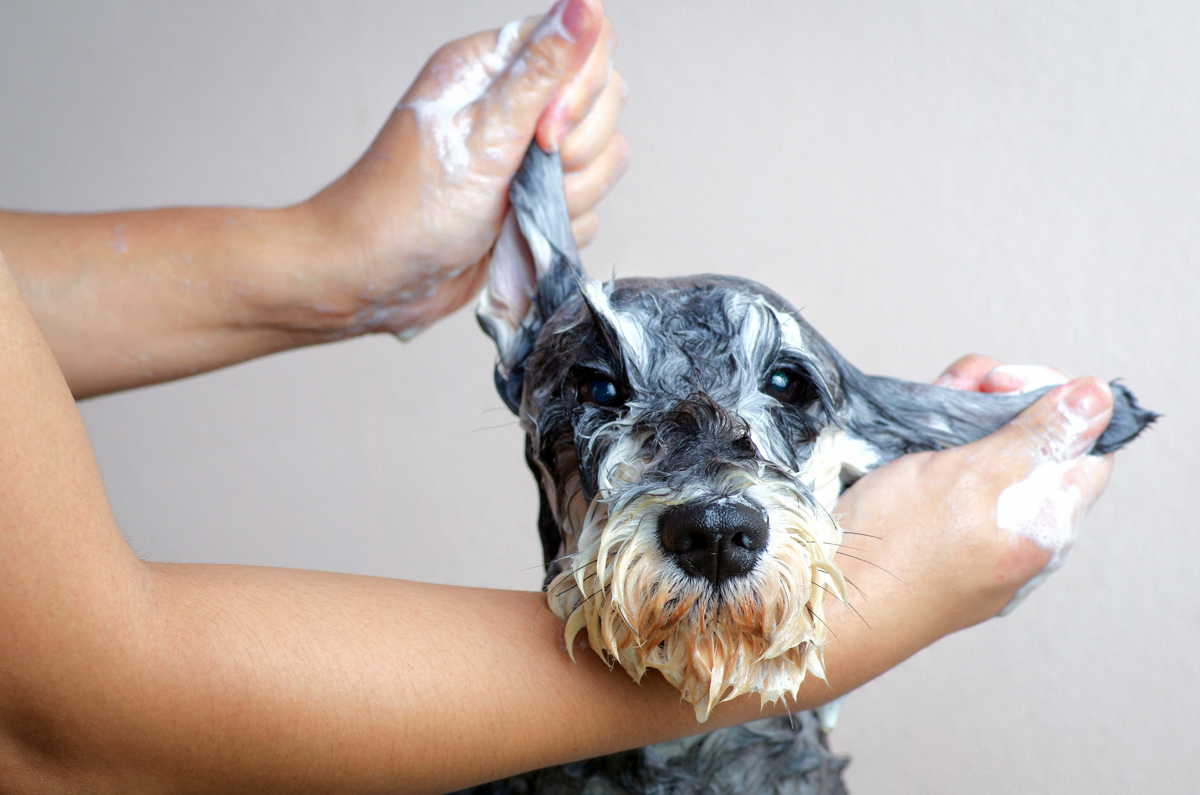
Customers see add-ons after they choose their main service and tap to add them, like ordering extras with a meal. They get two chances: when they choose the service, and again at the final checkout step, where an Add Extras carousel offers the add-ons again (Enhance Their Stay on a stay booking).
Offering extras this way can raise revenue per appointment by 10-30%1. Selling to existing customers is 5-25 times more profitable than winning new ones2, and a streamlined checkout raises spending by an average of 28.5%3.
Popular add-ons include:
- Grooming: Nail Trim, Teeth Brushing, Blueberry Facial, De-shedding Treatment, Ear Cleaning
- Daycare and boarding: Medication Administration, Extra Playtime, Photo Updates, Bedtime Treat
- Convenience: Pet Taxi (Pickup/Drop-off), Feed Dinner at Home, Early Drop-off, Late Pickup
How add-ons work
For the customer:
- They choose their main service, such as "Full Groom" or "Full Day Daycare".
- The add-ons for it appear with their prices.
- They tap the extras they want, and the price updates.
- They book, with the main service and each add-on shown in the breakdown.
For your team, appointments with add-ons show the add-ons icon on the calendar, and Mission Control cards name each add-on. Open the appointment to see the full list. Add-ons are itemised separately on the invoice, and if a customer asks for an extra at drop-off, your team can add it before the appointment is finalised.
Create an add-on
An add-on is a service with the type Add-on (extras), and the type cannot be changed later.
- Open Services, select Add New, then New Service.
- On Basic Info, enter a clear Service Name, such as "Nail Trim" or "Blueberry Facial", and choose Add-on (extras) as the Service Type.
- Pick a Category, which can group related add-ons, and enter a short Description of what is included. Select Next.
- On Pricing & Timing, enter the Price, such as $15 for a nail trim. If the price may vary, switch on "From" pricing. Select Next.
- Optional: add an Image. Select Next.
- On Team & Resources, leave team members and resources as Optional or Not used unless the add-on needs a particular skill.
- Select Create Service.
The link https://business.petboost.com/services?action=create opens the same wizard. An add-on takes its team member and resource from the main service, so it cannot require either, and resources are rarely needed.
An add-on has no time slot. It does not lengthen the appointment or change the times offered. If an extra needs its own time, lengthen the main service or book it as a separate Regular service.
| Add-on | Price |
|---|---|
| Nail Trim | $15 |
| Teeth Brushing | $12 |
| Blueberry Facial | $20 |
| De-shedding Treatment | $35 |
| Medication Administration | $10 |
| Pet Taxi (One Way) | $25 |
Show an add-on only with certain services
By default, an add-on shows with every service. A category does not change where it shows.
An add-on always needs a main service in the same booking, whether or not you pair it. A pet owner cannot book an add-on on its own: until they choose a service, the extras are greyed out with Choose a service before you add an extra. If a customer has to be able to book something by itself, create it as a Regular service, not an add-on. Where you sell it both ways, such as a nail trim that some customers book alone and others add to a groom, you need both: a Regular service they can book on its own, and an add-on paired to the services it belongs with.
- Open Services, select Manage on the add-on, then Manage Service.
- Choose Who Can Book and switch on Advanced options.
- Under Add-on Pairing, switch on Only Show With Certain Services.
- Pick the services it can be sold with.
- Select Publish Changes, tick the box in Before You Publish, then select Publish Changes.
In online booking, the add-on stays hidden unless one of those services is booked for the same pet. Your team can still add it to any booking. For example, a "Blueberry Facial" paired with your grooming services does not appear on daycare bookings, and a Pet Taxi add-on paired with full-day daycare stops appearing on your half-day and grooming bookings. Customers then see only the add-ons that make sense for their booking.
Pairing also governs a credit or a benefit. Until one of the paired services is in the booking, the pet owner cannot redeem a package credit or a membership benefit against that add-on, and the button to add it stays greyed out with the reason beside it.
Where add-ons show for your team
- Calendar (Day, Week and Timeline views): the add-ons icon on the appointment card. Turn on Has Add-ons in the calendar filters to show only these appointments. The Month view does not show add-ons
- Mission Control appointment cards: a badge for each add-on, by name
- Appointment detail: an Add-ons badge. Select it to see each pet's add-ons
- Appointment lists on a customer's profile, and on team member and resource appointment lists: a pink Add-ons badge
For example, a Full Groom (Large) for Bella might read:
| Line | Amount |
|---|---|
| Full Groom (Large) | $180.00 |
| Nail Trim | $15.00 |
| Blueberry Facial | $20.00 |
| De-shedding Treatment | $35.00 |
| Total | $250.00 |
Price an add-on
Most add-ons have a fixed price, such as a Nail Trim at $15.00, Teeth Brushing at $12.00 or Medication Administration at $10.00, for extras with consistent effort. Use a "from" price where the final cost depends on the pet, such as a De-shedding Treatment from $35.00 that depends on the coat, or a Flea Treatment from $20.00 that depends on the pet's size and the product.
Add-ons can have multi-pet discounts too, set under Multi-Pet Discount Pricing in Advanced options on the add-on's Pricing & Payments tab. For example, a Nail Trim might charge:
| Pets | Rate per pet | Discount |
|---|---|---|
| 1 pet | $15.00 | None |
| 2 pets | $12.75 each | 15% |
| 3+ pets | $11.25 each | 25% |
Add or remove an add-on on a booking
Customers add add-ons themselves while they book, when they choose the service and again under Add Extras at checkout, where a carousel shows each add-on with its image and price. On a booking with several pets, add-ons can be chosen per pet. Commitment is highest at checkout, because the customer has already decided to book, and existing clients take up extras more often than first-time visitors.
Your team can add an add-on to any appointment, for example when a customer asks for an extra at drop-off, you notice the coat needs de-shedding, or the customer asks about teeth cleaning while the pet is there.
- Open the booking from Appointments.
- Open Manage and select Edit. On a recurring booking, choose Edit this visit only or Edit all future visits.
- Under Add extras (or Add extras for and the pet's name), select the add-on. To take one off, select it again.
- Select Update This Appointment, or Update All Future Appointments on a series.
The price adjusts when you save. Add Item on the booking's invoice adds the same kind of extra: a charge only. It does not create a time slot or a Trips stop. If the extra needs to appear on the calendar or on the run, add it in the Services field on Edit, not as an add-on. See Using the booking form.
Choose your add-ons
Name add-ons clearly ("Nail Trim", not "NT"), price them so they are easy to add, group related add-ons in categories, and write a short description of what is included. Avoid offering so many that customers are overwhelmed, pricing them so high that few are taken, making an essential service an add-on, and forgetting to assign team members where a skill is needed.
| Business | Add-ons, with typical prices |
|---|---|
| Grooming | Nail Trim ($12-18), Teeth Brushing ($10-15), Ear Cleaning ($8-12), De-shedding Treatment ($25-45), Blueberry/Oatmeal Facial ($15-25), Paw Balm ($8-12), Cologne/Perfume Spritz ($5-10) |
| Daycare and boarding | Medication Administration ($10-15 per dose), Extra Playtime ($15-25), Special Diet Meal ($8-12), Photo/Video Updates ($10-15), Cuddle Time ($15-20), Bedtime Treat ($5-8), Spa Bath ($25-40) |
| Dog walking | Extended Walk (+15 min, $12-18), Park Visit ($10-15), Feeding Service ($8-12), Key Collection ($5-10) |
| Convenience and transport | Pet Taxi - Pickup ($20-35), Pet Taxi - Drop-off ($20-35), Early Drop-off ($10-15), Late Pickup ($10-15), Feed Dinner at Home ($12-18) |
Tip
A low price such as $15 is easy to add, while $47 makes people stop and think. Round numbers such as $15, $20 and $25 are taken up more than $17.50. A bundle offer, such as "Add teeth brushing for only $10 with any groom", and a description that shows what is included both help justify the price.
Once add-ons are set up, every customer is offered the relevant ones at checkout without anyone on your team remembering to ask, and customers see exactly what they are paying for before they confirm.
Report on add-ons
Add-ons sold on Reporting & Intelligence shows which add-ons sell and each one's attach rate, the share of bookings that include it. Use it to see whether revenue per appointment has risen since you added extras. Lower the price or improve the description of an add-on few people take, create related add-ons for popular ones, and remove or rethink one nobody takes.
Common questions
Can customers book an add-on by itself?
No. An add-on must go with a main service (Regular, Initial or Stay), including one paid with a package credit. It cannot be booked on its own.
I want nail trim as an extra on a groom AND as a standalone drop-in. What do I do?
Create two services. Keep the Add-on for "while you are there", and create a separate Regular, such as Drop in Nail Clip, for clients who only want nails. The same price and duration is fine. Service type cannot be changed after you create the service, so do not try to convert the Add-on into a Regular.
How many add-ons should I offer?
Start with 3-5 popular extras. Too many options can overwhelm customers, and you can add more as demand shows.
Do add-ons work with packages?
Yes. Customers using package credits can still add add-ons when they book. The add-on is charged separately from the package credit, unless the package includes that add-on.
Can I make an add-on mandatory?
No. Add-ons are optional extras. If something is required, make it part of the main service or a separate service.
What if I want different add-on prices for different pet sizes?
Create separate add-ons, such as "De-shedding (Small)" at $25 and "De-shedding (Large)" at $45, or use a "from" price and adjust it at booking.
Can customers add add-ons after booking?
Yes, in the pet owner app. On a pending or confirmed booking, the customer picks extras under Add Extras and confirms with the button at the bottom, which reads Add and the number of extras and total, such as Add 1 extra · $15.00. This is not offered for Stays, courses, bookings paid with package credits, the first booking of a recurring series, or when your change and cancellation policy does not allow changes. Your team can add add-ons to any appointment by editing it.
Do add-ons affect team member scheduling?
No. Add-ons have no time slot, so they do not change the appointment's length or the times offered. They also do not appear as their own card on Appointments or as a stop on Trips. If an extra needs time or a trip stop, lengthen the main service or add a Regular service in the Services field on Edit.
I added a service with Add Item on the invoice. Why is it missing from Appointments and Trips?
Add Item adds a charge to the invoice only. Open Edit (or a new booking) and add it in the Services field.
How do I see which add-ons were requested?
Open the appointment and select the Add-ons badge to see each pet's add-ons. On the calendar, look for the add-ons icon, or turn on Has Add-ons in the filters.
Next steps
- Complimentary extras - $0 add-ons, usual price, and pre-selection
- Getting Started with Services - Full service creation guide
- Service Configuration - Pricing and duration details
- Booking Availability - How add-ons affect availability
- FAQ - Additional tips and troubleshooting
References
Footnotes
-
Accenture research on upselling and cross-selling strategies. Cited in Opensend: Upsell/Cross-sell Statistics. ↩
-
Bain & Company research on customer retention economics. Selling to existing customers is significantly more cost-effective than new customer acquisition. Cited in Opensend: Upsell/Cross-sell Statistics. ↩
-
Hongjun Ye et al., "The Effect of One-Click Checkout on Consumer Spending," Management Science (2023). Research conducted at Cornell University. Read the study summary. ↩