
A Stay is a multi-day booking with a check-in date and time and a check-out date and time. Use it for overnight boarding, housesitting and multi-night training camps.
A Regular service cannot become a Stay after you create it. If a service is named like a night stay but its type is Regular, create a new Stay service.
Create a Stay service
A Stay service holds the pricing and the check-in and check-out windows that every stay booked on it uses.
- Open Services, select Add New, then New Service.
- Under Service Type, choose Stay.
- Enter the Service Name and choose a Category, then continue to pricing.
- Under Pricing Mode, choose Duration-based, Number of nights or Number of days. See Stay pricing.
- After you save, open the service, then Duration & Timing, and set the Check-in & Check-out Windows. See Set check-in and check-out windows.
- If pet owners should book it online, open Booking Settings and, under Self-Service Booking, turn on Online booking.
- Select Publish Changes.
You cannot change the type after you create the service.
Book a Stay as staff
Staff book a stay on its own form with three steps: Pets & Services, Timing and Review.
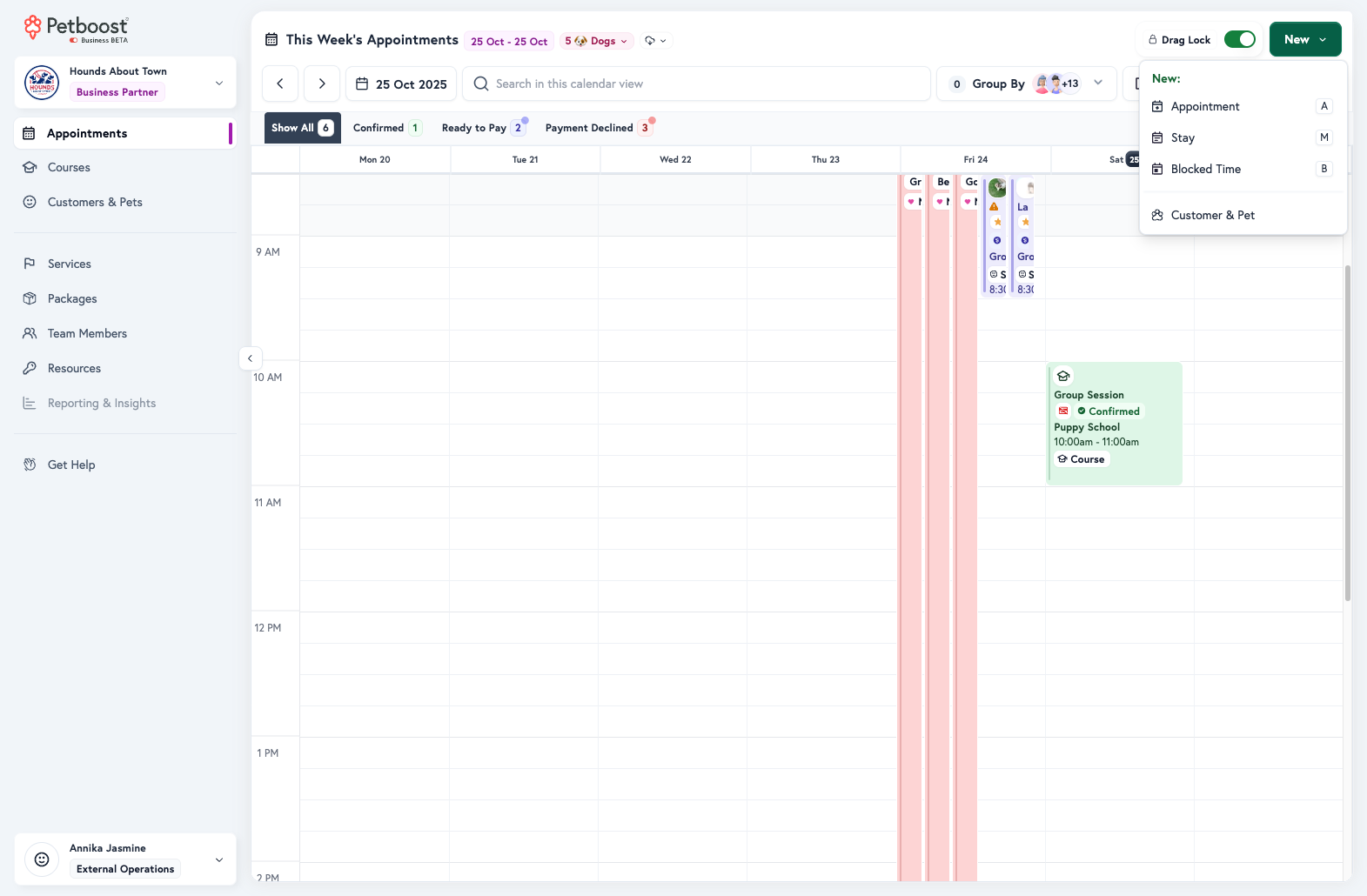
- Open Appointments, select New, then Stay. Stay is listed once you have a Stay service.
- On Pets & Services, choose the pet, the Stay service under Service for the pet, and a room under Room/Kennel for the pet, marked Required or Optional. Staff for the pet appears when the service needs a team member. To add another pet, select Add Sibling, or Create & Add Pet for a pet that is not in Petboost yet.
- Select Continue, then on Timing set Check-in Date, Check-in Time, Check-out Date and Check-out Time.
- Select Continue, then on Review check the stay and add any add-ons.
- Select Book Stay for and the pet's name, such as Book Stay for Kiwi.
The form pre-fills check-in and check-out from the service windows. Staff can still change the times.
Set check-in and check-out windows
Windows live on the service, not on each booking.
- Open Services and select the Stay service.
- Open Duration & Timing.
- Under Check-in & Check-out Windows, set From and Until for Check-in and for Check-out.
- Select Publish Changes.
| Rule | From | Until |
|---|---|---|
| Exact time (locks the pet owner picker) | 16:00 | 16:00 |
| Window | 16:00 | 17:00 |
| Any time from | 16:00 | empty |
| Any time until | empty | 17:00 |
| No restriction | empty | empty |
The check-in window applies on the first day only. The check-out window applies on the last day only.
Pet owners can only pick a time inside the band. Staff can still change the times when they book the stay.
Windows do not add an early or late fee. For the five rules, staff override and bulk edit, see Stay Check-in and Check-out Windows.
A same-day Stay with check-out before check-in, for example 16:00 in and 09:00 out on one day, cannot be booked by a pet owner. Use a Regular daytime service, or Number of nights with a Daycare rate (same-day stays) and windows that fit on one calendar day.
Stay pricing
Each Stay service bills by one Pricing Mode, set on Pricing & Payments.
Set the pricing mode
- Open Services and select the Stay service.
- Open Pricing & Payments.
- Under Pricing Mode, choose Duration-based, Number of nights or Number of days, then enter the rate.
- Under Pricing Preview, select Try it Out and set a stay length to see what it costs.
- Select Publish Changes.
Number of nights
Hotel-style. Petboost counts midnights crossed and multiplies by Rate per night.
Example: Friday 16:00 to Monday 09:00 is 3 nights.
A same-day visit, with check-in and check-out on the same date, uses Daycare rate (same-day stays) when you set one, otherwise Rate per night.
Use Number of nights when every one-night stay should cost the same regardless of the clock.
Number of days
Petboost counts calendar days, arrival and departure days both, and multiplies by the Standard Daily Rate.
Example: Friday to Monday is 4 days.
Use Number of days when you charge for every day the pet is with you, including the day they go home.
Duration-based
The default if you do not pick a mode. Petboost bills the hours from check-in to check-out in 24-hour periods, with optional per-day tiers and short-stay or spillover rates.
Example: Monday 10:00 to Saturday 18:00 is 5 days and 8 hours. Five full periods use the unlocked per-day tier. The remaining 8 hours use a spillover tier if you set one.
Early or late times change the price only in this mode, because they add hours. That extra is spillover, or another 24-hour period, not a separate late-checkout fee.
Use Duration-based when a later pickup should cost more than a 09:00 pickup.
Extended stay discounts
Every mode can give a longer stay a lower rate. Add tiers under Extended Stay Discounts on Pricing & Payments. The tier the whole stay reaches prices every unit of it: every night on Number of nights, every calendar day on Number of days, and every 24-hour period on Duration-based.
Example on Number of days at $90 a day with a 14 to 55 days tier at $81: a 19-day stay is 19 × $81 = $1,539.
Short-stay and spillover rates apply on Duration-based only. Switching Pricing Mode keeps your tiers.
Field-by-field setup and the 24-hour examples are in the Service Pricing Guide.
During the stay
Mark arrival and departure on the appointment, and add extras either as an add-on on the stay or as their own appointment.
To mark arrival or departure, open the appointment on Appointments and select Check in or Check out.
A Stay can take two kinds of extra service. An add-on has no time slot and stays on the Stay invoice. An appointment during the stay has its own time, team, room and invoice.
Add an add-on to the stay
Use this when the extra does not need a time slot, for example a bath or medication.
- Open the Stay appointment on Appointments and edit it, or create the stay from New, then Stay.
- On Review, add the extra from the add-on tiles.
- Choose Once, Each night or Specific Days. The choice applies to every add-on on the stay, and shows when the stay is longer than one night.
- Select Book Stay for the pet, or Update the pet's Stay when you are editing. The Stay invoice updates.
Book an appointment during the stay
Use this when the extra needs a time slot, team member or room, for example a Wash Tidy with Magic Availability.
- Open the Stay appointment on Appointments.
- On the Appointment tab, under During this stay, select Schedule during stay.
- Choose the Regular service and a date inside the stay. Only dates during the stay can be picked.
- Select Create Appointment.
If you start from New, then Appointment, and pick a Regular service on a date inside the stay, Petboost explains that the service is its own appointment during the stay. Select Book during stay.
A Stay and a Regular service cannot share one appointment, so Petboost does not offer Add to visit on the stay.
See How do I add services during a stay?.
To extend a stay, edit the appointment and change the check-out date. Pricing recalculates from the service Pricing Mode.
Hide a Stay from online booking
Use this if you agree handover times with each customer and do not want the Stay on the booking form.
- Open Services, select the Stay service, then open Booking Settings.
- Under Self-Service Booking, turn Online booking off.
- Select Publish Changes.
- Create bookings on Appointments from New, then Stay.
Payments, the calendar and resources still work. See Internal-only services.
Troubleshooting
The Stay does not appear on the booking form
Check the service type is Stay, not Regular, and that Online booking is on under Self-Service Booking. The type cannot be changed after you create the service: create a new Stay if the existing service is Regular.
A leftover 4pm time will not clear
Fixed Start Time is a Regular field, and Stay Duration & Timing hides it. An old Regular value can still sit on a Stay record after a conversion. The next time you publish a change to the Stay service, Petboost clears it. If it is still there after you publish, use Speak with the team.
Price is not a flat night rate
Open Pricing & Payments. If Pricing Mode is Duration-based, which is also what an unset mode means, change it to Number of nights and enter Rate per night.