
When you enrol a pet in a course, it is booked onto all the lessons at once, one place in the class is taken, the customer is committed to the whole programme, and attendance can be tracked across every lesson.
Enrol pets in a course
- Open Courses, select New, then Enrol pet(s).
- Under Select Owner & Pets, search by pet name, owner, phone or email, and select the pets. To add a customer first, select New.
- Under Course, choose the course.
- Optional: add Notes.
- Under Notify customer?, choose Send notification or Book silently.
- Select Enrol Now.
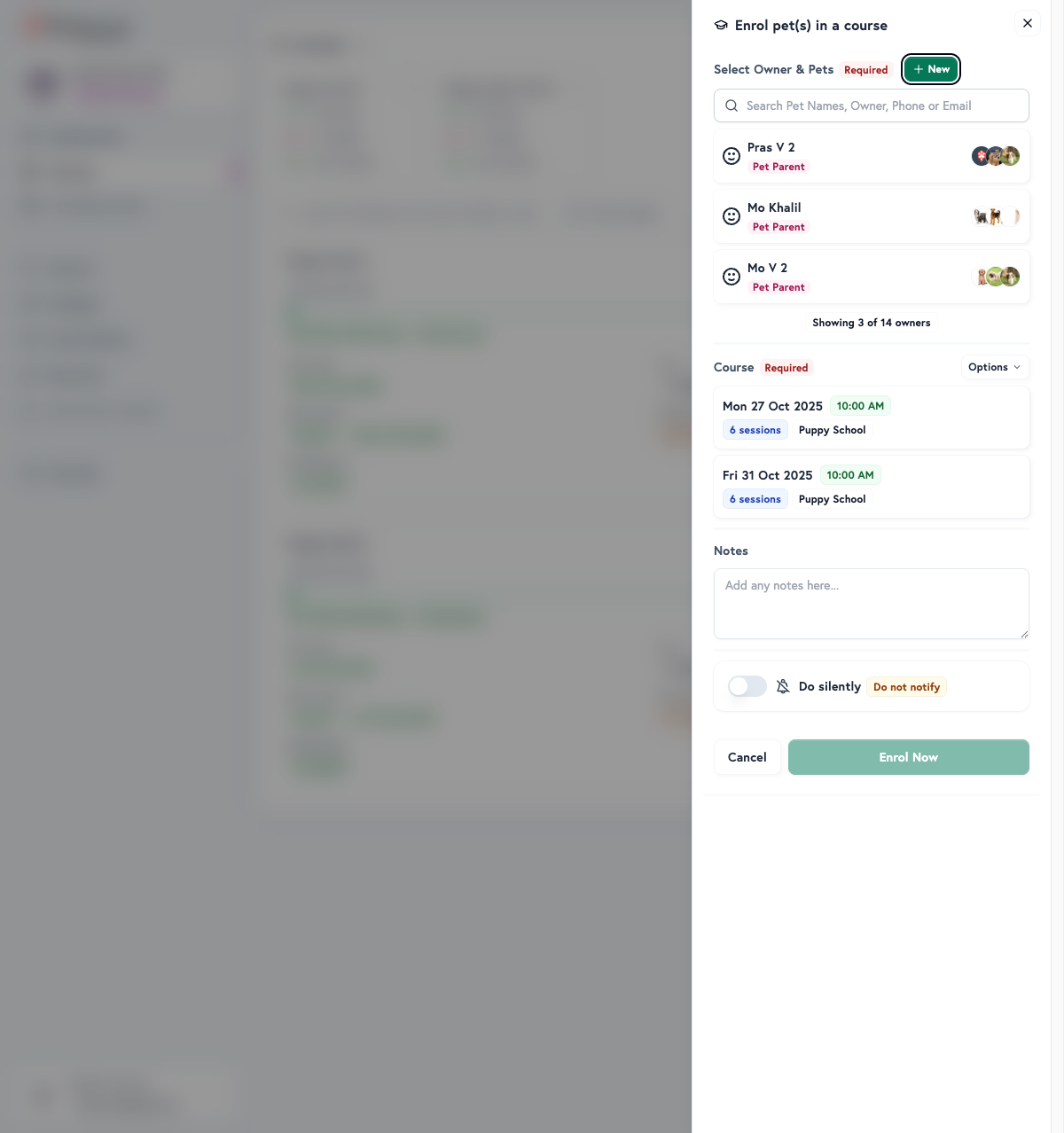
You can enrol several pets from the same owner at once, and the button then reads Enrol Now with the number of pets. Enrol pet(s) also sits in Mission Control as Course Enrolment, and Enrol Pet in the Manage menu of a course on Courses opens the same form with that course's template chosen.
Notify customer? has no default, and Enrol Now stays unavailable until you choose. Send notification sends the booking confirmation by email and SMS. Book silently sends nothing, which suits an enrolment the customer already knows about, or a test. If the course takes a deposit and the customer has no card on file, choose how to take the deposit before Enrol Now turns on.
The Notes field on this form is not saved to the lesson bookings. To record special requirements, customer requests or behavioural considerations, add them to the lesson appointments after you enrol.
Which courses you can choose
The Course list shows each course's name, start date, lesson time and number of sessions, such as 6 sessions. It shows courses that have not started and that have places left, and checks the selected pets against each course's service: its age, breed and other eligibility rules, checked for the course's start date.
A course the pets do not qualify for is listed after the others, faded, with the reason, such as a pet too old on the course start date. Options holds Course Filters: Ignore Eligibility, Show Full Courses and Show In Progress Courses. If no course suits the pets, No Eligible Courses offers Publish New Course or Ignore Eligibility.
When a pet fails a badge, prerequisite, capacity or attendance cap rule, your team can still enrol it by confirming Enrol anyway?, or Attendance limit reached for an attendance cap. The attendance cap override is recorded on the appointment. A pet owner booking online cannot override.
See who is enrolled
- Open Courses and find the course.
- Select the pet count on the course, such as 3 pets, to open its enrolled pets, or select Manage, then View Course.
Each course shows the places left, such as 4 Places Remaining, or Course Full. On the course's own page, the header shows how many pets are enrolled, and each enrolled pet has a Manage menu with View Lesson Card, Check In and Check Out, Move to Another Course, Cancel Enrolment and, when the owner has not agreed to your terms, Resend Activation SMS.
Each enrolment takes one place, and a place counts across every lesson of the course. A full course drops out of the Course list unless you switch on Show Full Courses, and reserved places reduce the places left.
Move a pet to another course
Move a pet when it needs a different day or time, keeping its lessons in step.
- Open Courses, select Manage on the course, then View Course.
- Select Manage on the pet, then Move to Another Course.
- Under Which sessions need to be moved?, choose the lessons, then select Next: Choose Course.
- Choose the new course and the same number of lessons on it, then select Next: Review.
- Check the before and after, choose Send notification or Move silently, then select Move Attendee.
The review warns when two lessons would land on the same day, or when a date already has a lesson for the pet. A move cannot be easily undone.
Hold places with Temporarily Reserved Places
Reserve places for a customer who is still deciding, a payment you are waiting on, or another special case.
- Open Courses, select Manage on the course, then View Course.
- Choose Temporarily Reserved Places.
- Set Reserved Places Count to the number of places to hold.
- Select Save Changes.
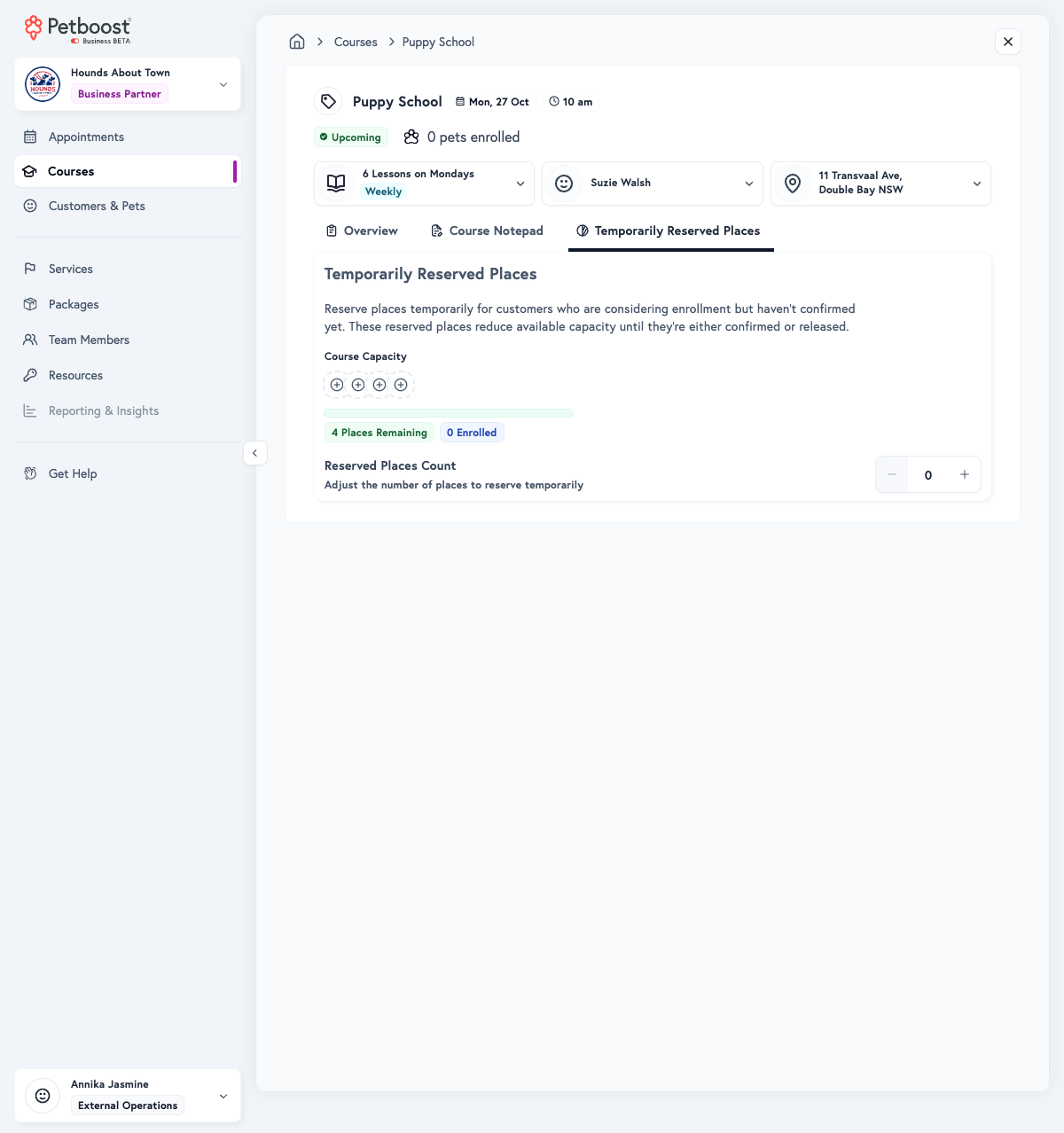
The count applies to every lesson in the course, and reserved places reduce the capacity left for new enrolments. They do not expire: lower the count to release them. Enrolling a pet does not use up a reserved place, so lower the count once the customer enrols. Discard Changes drops a count you have not saved.
Plan class sizes
Small classes of 4 to 6 pets suit specialised training and behavioural work: more personal attention and better control, at a higher cost per pet. Medium classes of 8 to 10 suit standard obedience and puppy classes, and need an experienced instructor. Large classes of 12 or more suit basic socialisation and introductory programmes, and need strong classroom management.
When a course fills, note the customers who are interested, and offer another date or publish another course from the same template. Let the demand you see shape the courses you plan next.
Before you open enrolments, check the course is set up, the instructor is available, the location is ready and the start date leaves time to fill it. Announce a course two to four weeks ahead, by email to eligible customers, on social media and in person. Once it starts, track attendance at each lesson, note each pet's progress, and keep in touch with the customers.
Troubleshooting
I can't find the customer
Try other spellings, or search by phone or email. If they are new, select New under Select Owner & Pets to add them.
A course isn't appearing
Check the course has not started and has places left, or switch on Show In Progress Courses or Show Full Courses under Options. If it is faded, read the reason beside it: the pets may not meet the course's service rules.
A pet can't be enrolled
Check the pet's profile is complete, including its date of birth and breed, and that it meets the course template's age, breed and badge rules under Manage Template. Your team can still enrol it with Enrol anyway?.
The enrolment confirmation wasn't sent
Book silently may have been chosen, or the customer's email address may be wrong. Check your Notifications settings too.
Next steps
- Publishing Courses: create new courses
- Course Lifecycle: track progress and manage active courses
- Getting Started with Courses: course structure and templates
- Creating Your First Course Template: step-by-step first-time setup
- Course FAQ: common questions answered
Course lessons also show as appointments on Appointments, and customers and their pets are on Customers & Pets.