
Each stage of a course allows different things, from open enrolment and free rescheduling before the first lesson to a locked record once the last lesson has passed. A course can also be cancelled while it still has lessons to run.
Course statuses
| Status | When | What you can do | How it shows |
|---|---|---|---|
| Upcoming | The first lesson is still ahead, and no lesson has run | Enrol pets while places are left, reschedule dates and times, change the instructor or location, cancel, add notes | Upcoming badge, the first lesson's date, places remaining |
| In Progress | Between the first and the last lesson | Enrol pets if the service allows, check pets in and out of each lesson, add notes, keep the course notepad, reschedule the lessons still to come | In Progress badge, the next lesson's date, lessons remaining |
| Completed | The last lesson has passed | Review the course history, final enrolment and attendance, notes and records, and print certificates | Every lesson shows as Completed |
| Cancelled | The course was cancelled | Review what was scheduled | A CANCELLED badge |
A completed or cancelled course can no longer be rescheduled or cancelled, and takes no more enrolments. To run the programme again, publish a new course from the same template.
Check a course's progress
- Open Courses.
- Find the course: its badge and coloured bar show its status, beside its first or next lesson and its end date.
- To open it, select Manage, then View Course.
An In Progress course also shows how many lessons are left, such as 3 of 6 lessons remaining.
The course page
The course page opens on Overview, with Course Notepad, Temporarily Reserved Places and, when the course collects forms, Form Responses beside it.
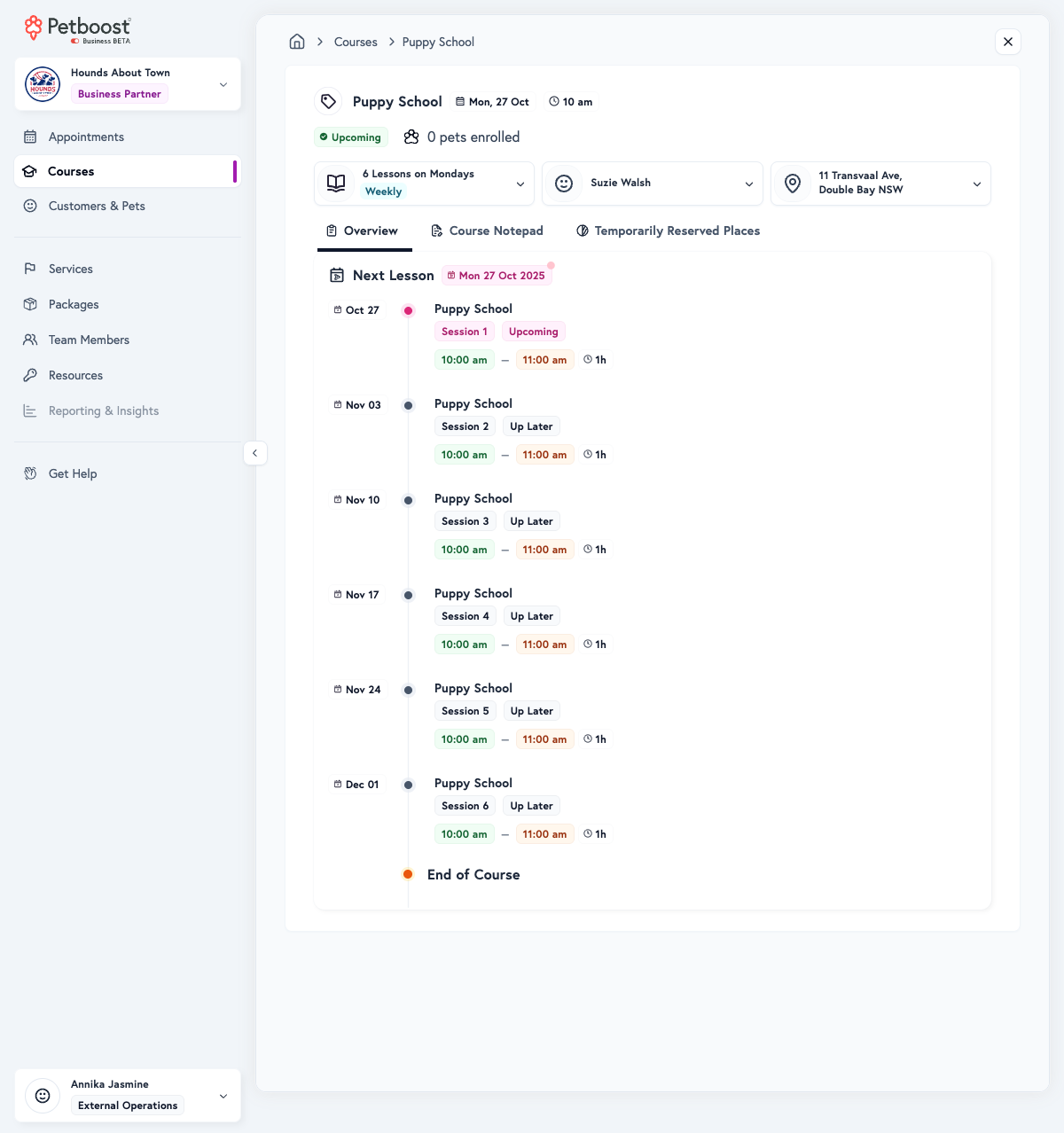
The header shows the course name, its status badge and how many pets are enrolled, such as 0 pets enrolled. Its three menus hold the schedule summary, such as 6 Lessons on Saturdays, Weekly, with Course Actions (Copy Booking Link, Reschedule Course, Cancel Course and Print All Certificates); the instructor, with View Details and Change Instructor; and the location, with Open Google Maps.
The lesson timeline lists every session from first to last, with month markers and an End of Course marker after the final lesson. It jumps to the next lesson, and each lesson shows its number, date, time range, duration, such as 1h, and a status:
| Lesson status | Meaning |
|---|---|
| Completed | A past lesson |
| In Progress | Happening now |
| Upcoming | The next lesson |
| Up Later | Scheduled, but not the next one |
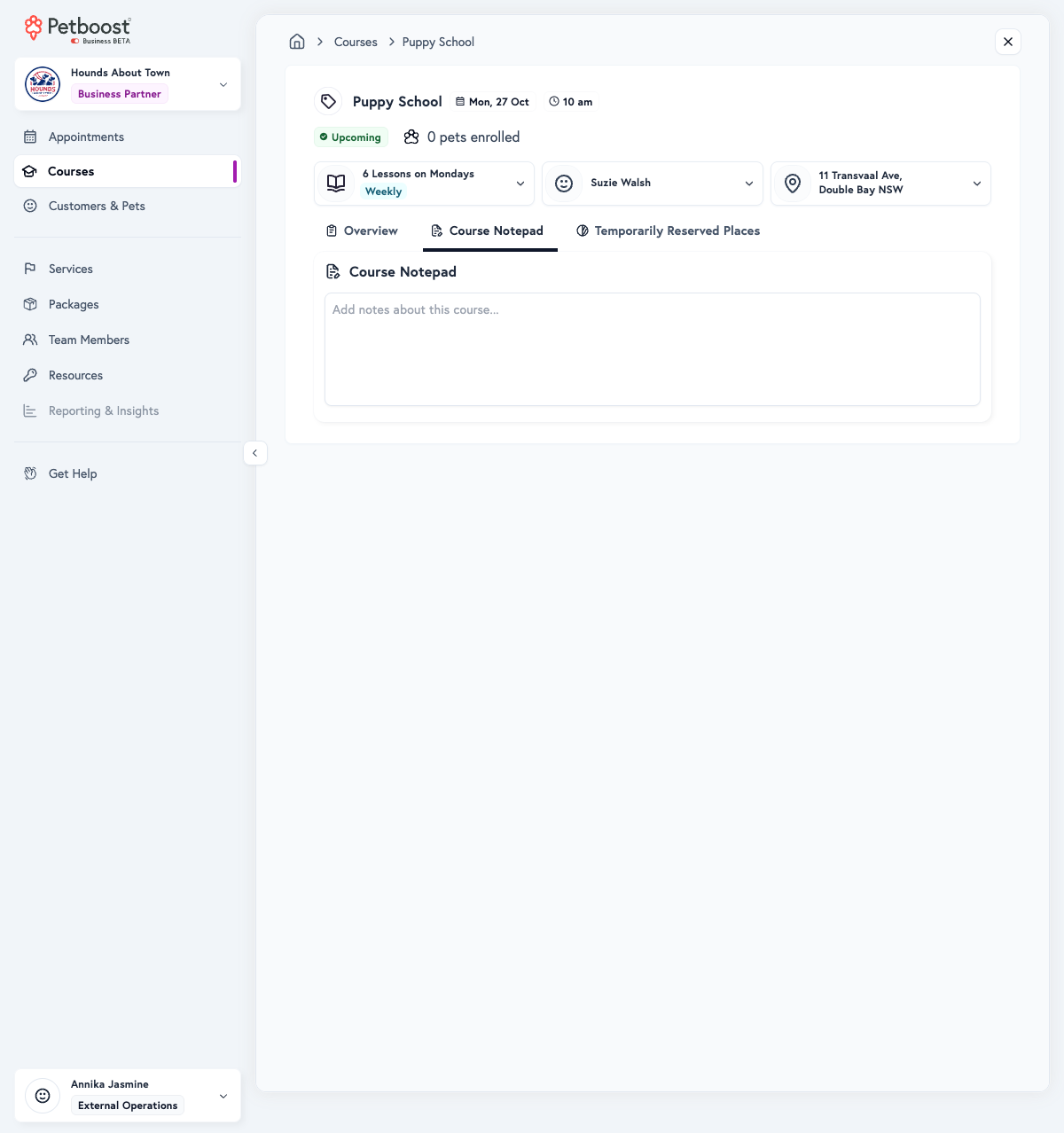
Course Notepad is where your team records observations during classes: group dynamics, each pet's progress, incidents, achievements, customer feedback and anything needing attention, lesson by lesson. Update it after each lesson while the details are fresh.
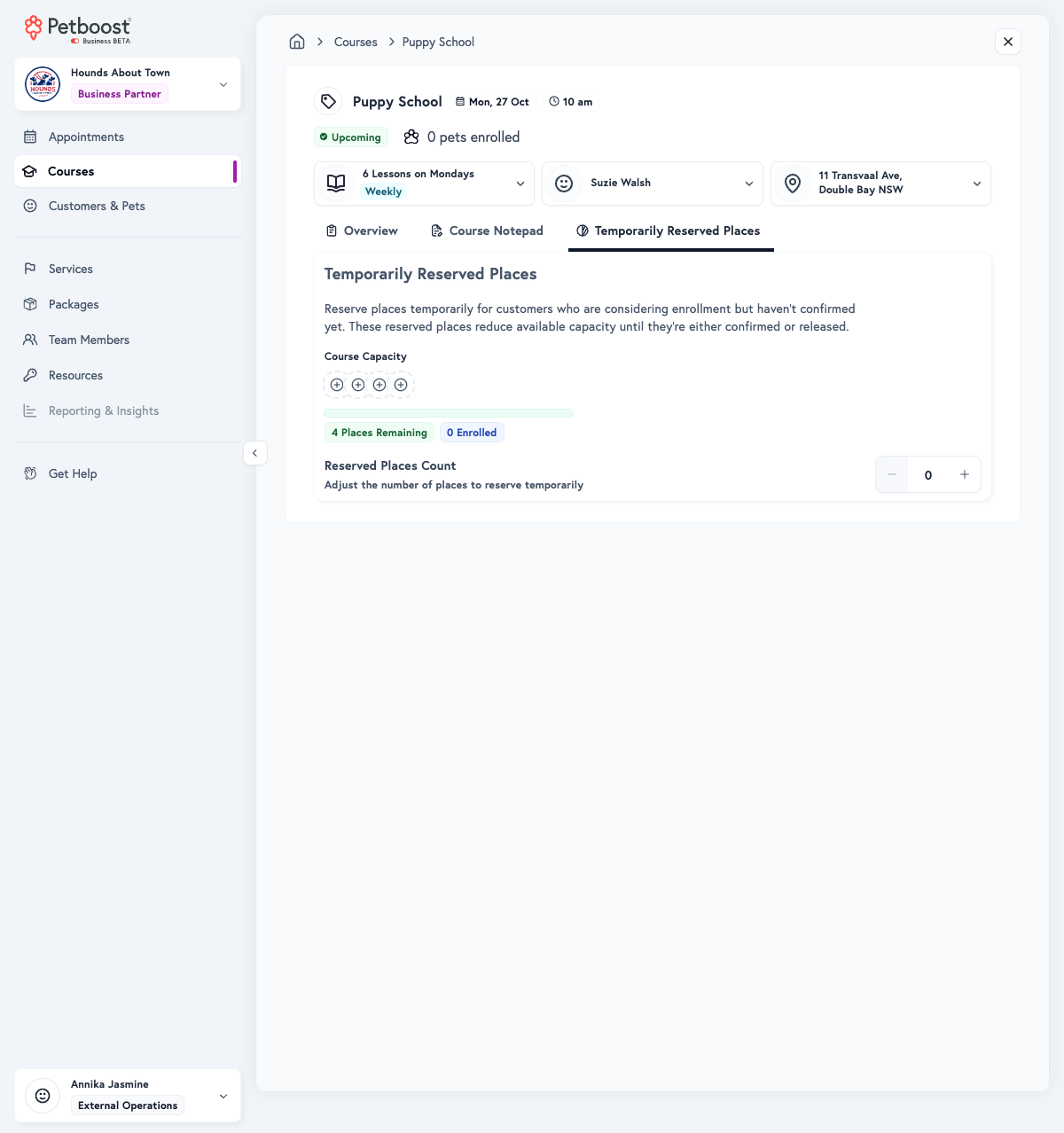
Temporarily Reserved Places holds places back by hand from the course's capacity, for a customer who is deciding, a payment you are waiting on, or another special case. Reserved places are not enrolments, do not expire, and reduce the places open to enrolment. Set the number under Reserved Places Count, then select Save Changes, and lower the count to release a hold, including after a held customer enrols. See Managing Course Enrollments.
Take attendance at a lesson
- Open Courses, select Manage on the course, then View Course.
- On Overview, open the lesson.
- On each pet's card, select Manage, then Check In when the pet arrives.
- Select Manage, then Check Out when it leaves.
There is no absent marker. A lesson you never check in stays Confirmed unless Auto-start lessons is on in the template's Automatic Actions. Follow up on repeated absences.
Finish a course
- Open Courses, select Manage on the course, then View Course.
- Write the final lesson notes, and check every pet is checked out of the final lesson.
- To print certificates, select Print Certificate on a pet's card, or Print All Certificates under Course Actions.
Afterwards, gather feedback, suggest the next-level course, and keep in touch with graduates for future programmes.
Reschedule a course or change the instructor
Move the course's dates and times, or change its instructor or location, while it still has lessons to run.
- Open Courses, select Manage on the course, then Reschedule Course. On the course page, Reschedule Course is under Course Actions, and Change Instructor in the instructor menu opens the same form.
- On Course Setup, change the Team Member or Location if needed. The template cannot be changed.
- On Scheduling, set the new Start Date and Start Time, then check availability or skip the check.
- On Review & Reschedule, choose Send notification or Reschedule silently.
- Select Reschedule Course.
Lessons already completed show Completed and stay as they were. Keep to the original schedule where you can; when a change is needed, tell every enrolled customer early, and think about the effect on the course's end date.
Cancel a course or some of its sessions
- Open Courses, select Manage on the course, then Cancel Course.
- Choose Entire Course, or Select Sessions and pick the sessions.
- Choose Send notification or Cancel silently.
- Select Cancel Entire Course, or Cancel Selected Sessions.
Petboost cancels the sessions and their invoices in the background, and they leave the calendar a few moments later.
Run a course well
Two to four weeks before the start, confirm the enrolments, send a welcome with the details, and prepare the materials and the content plan. A week before, send a reminder, confirm the instructor, check the space and send arrival and parking details. The day before, review the enrolled pets' profiles and set up the space and equipment.
During the course, keep to the schedule and the template's structure, send regular updates, answer questions, share take-home exercises and progress, and keep the notepad and attendance up to date. Afterwards, thank the customers, share certificates, ask for feedback, review what worked, update the template if needed, and plan the next dates.
Troubleshooting
The next lesson isn't showing correctly
Check the lesson dates and the course's status, and look for scheduling conflicts on Team Members.
I can't change the lesson dates
A completed or cancelled course cannot be rescheduled, lessons already completed stay as they were, and your role may not allow course changes.
The course hasn't moved to In Progress
Check that the first lesson's date has passed and that the course wasn't cancelled.
Next steps
- Publishing Courses: create new courses
- Managing Enrollments: enrol pets and manage class capacity
- Getting Started with Courses: course structure and templates
- Creating Your First Course Template: step-by-step first-time setup
- Course FAQ: common questions answered
Course lessons also show as appointments on Appointments, and automated course steps such as Auto-start lessons sit on each template's Automatic Actions.