
Use a recurring appointment for regular daycare, weekly grooming, dog walking, one-to-one training and other repeat services for one pet. It also suits monthly nail trims, quarterly health checks, seasonal grooming packages, ongoing daycare subscriptions and regular medication visits. It saves creating each booking, keeps regular customers booked on a consistent schedule, and avoids gaps. Petboost links every booking in the series, so you can manage the whole series or one visit.
Do not use recurring appointments for a group course. Puppy school, scentwork and other multi-lesson class programmes belong on Courses: a recurring appointment repeats one service for one pet and does not manage enrolment, class capacity or attendance. See Courses versus services. A multi-night boarding stay is booked as a stay, with a check-in and a check-out, not as a daily series. See Stay Appointments.
Create a recurring series
- Open Appointments, select New, then Appointment.
- Under Create, choose Recurring.
- Choose the customer, the pets and the services, and set the first date and time.
- Under How often, choose Daily, Weekly, Fortnightly, Monthly or Custom, and set its options.
- Set when the series ends: After a number of visits, on an End Date, or No End Date.
- Under Team Member, choose a team member, or leave Magic Match so Petboost picks a free one when you book.
- Check the summary, then select Create Recurring Series.
Creating the series books its visits up to 12 months ahead. The summary shows the pattern, the days, how long the series runs, how many visits it creates and the team member.
How often
- Daily: every day. Daily, including weekends? sets whether weekends are included. For every other day, choose Custom, then Every: 2 Days. Suits daily medication visits and short intensive training
- Weekly: on the days you tick under Which days?, from Sunday to Saturday, such as Monday, Wednesday and Friday. You can tick several days, such as Monday and Friday for twice a week. Suits regular daycare, a weekly private lesson and walking
- Fortnightly: every second week on the days you tick. For a longer gap between weeks, choose Custom, then Weeks
- Monthly: every 4 weeks on the weekday of the first appointment. It shows as Ev. 4 weeks on Saturday, for example. There is no day-of-month option, such as the 15th, and no week-of-month option, such as the first Monday. For a longer gap, choose Custom, then Months. Suits monthly grooming, regular health checks and membership-based services
- Custom: Every: a number from 1 to 99, then Days, Weeks or Months. Months become weeks, shown as Converted to every so many weeks: each month counts as 4 weeks, so 2 months books every 8 weeks. Suits non-standard schedules and services with exceptions
When the series ends
- After: End after a number of visits, up to 52. For example 8 visits of weekly training, or 12 visits for a 3-month daycare package. Suits fixed-length programmes, such as a private training course, and prepaid packages
- End Date: End on a date. Suits seasonal services, such as summer daycare, and contracts with an end date
- No End Date: the series continues until you stop it. When you save, Petboost books visits 12 months ahead, counted from the first appointment or today, whichever is later, and each night it adds visits so the calendar stays 12 months ahead. You can still stop the series at any time. Suits ongoing services, subscription daycare and long-term regular customers
Team member
Each pet's service line has one Team Member field, and every visit in the series gets that team member. To let busy dates go to someone else, turn on Allow different team members for each occurrence before you check availability. Petboost does not rotate a series through a list of team members: to give different weekdays different team members, book a separate series for each.
See a series
On the calendar, a card in a series shows the recurring icon and the series pattern, so you can tell it from a one-off booking. Select any card in the series to open it.
On the appointment's page, Manage Recurring Series shows the pattern, such as weekly on Monday and Friday, how many visits are Completed so far, how many are remaining and how many are cancelled. Its Appointment Timeline lists past and upcoming visits in the series, each with its status, such as Completed, Cancelled, Confirmed or Pending. The first visit is marked Original 1st and shows who created the series. Also show non-recurring adds appointments that are not, or no longer, in this series, marked Non-series.
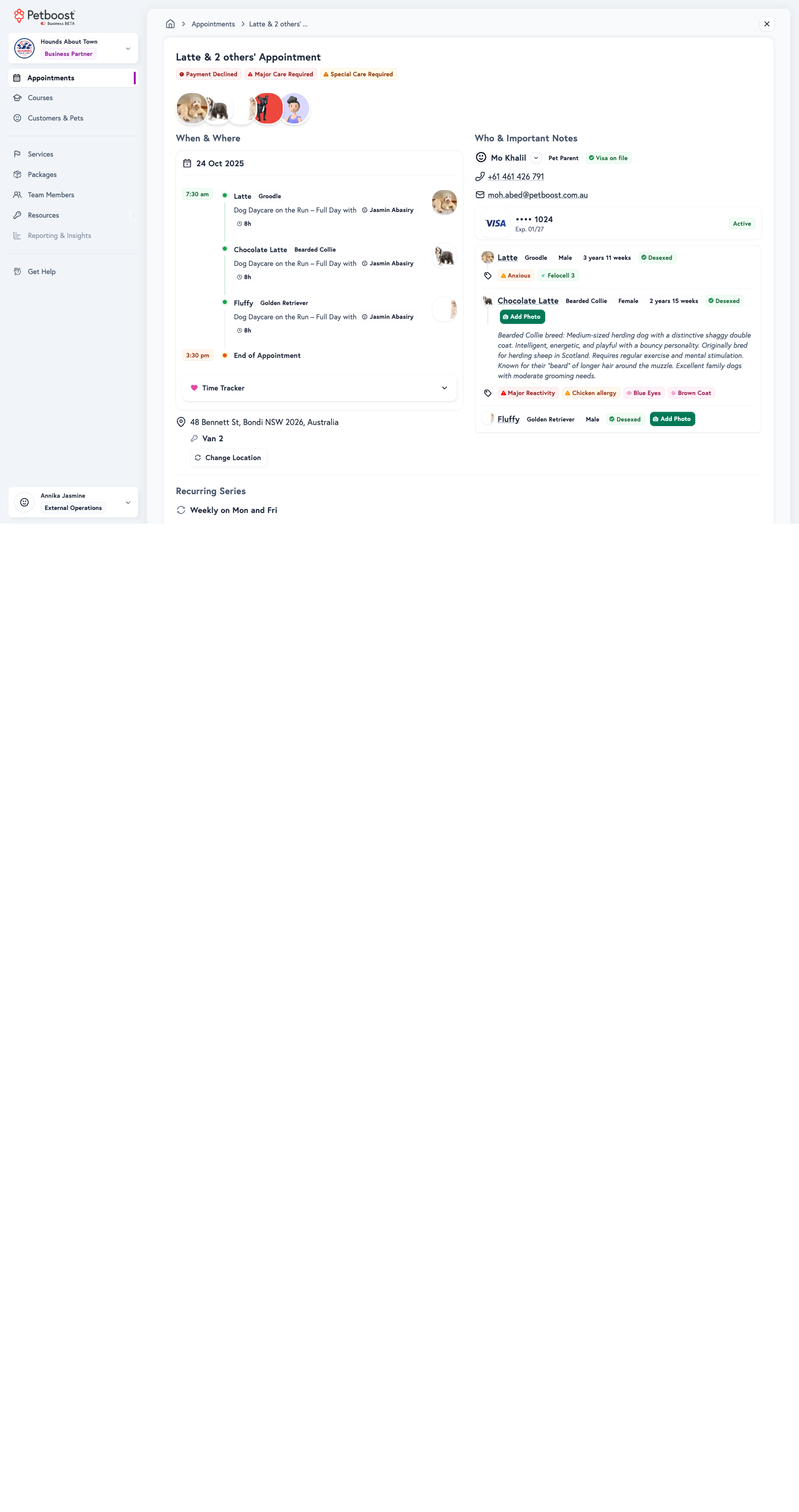
To see every series on a pet at once, including ended ones, open Customers & Pets, select the pet, then open the Appointments tab and Recurring Series. Recurring Series appears once the pet has a series. See Recurring Series Timeline.
Change every future visit
Change the service, team member, time, price, frequency or days for all visits from this one onwards. Past and completed visits do not change.
- Open Appointments and select any visit in the series.
- Select Manage, then Edit all future visits. Edit This and All Future in Manage Recurring Series does the same.
- Make the change. To change the frequency or the days, check All future visits is selected, then change How often.
- Select Update All Future Appointments.
When the days change, Confirm Day Change shows which future visits are archived or added. Petboost ends the current schedule from that date and starts a new one, so the old schedule appears under Ended Series on the pet. Typical changes are daycare days moving from Monday, Wednesday and Friday to Tuesday and Thursday, a time moving from 9am to 11am for good, or a 4-weekly groom moving from Monday to Wednesday.
You can change the end date, to extend or shorten the series, and the team member, the price, the time, the frequency and the days. You cannot change the customer or the pets: create a new series and end the old one.
Change one visit
- Open Appointments and select the visit.
- Select Manage, then Edit this visit only.
- Change the time, team member or services.
- Select Update This Appointment.
The visit stays in the series with its own values. For a different service on one week, change that visit and leave the rest of the series as it is.
Pause or cancel a recurring series
To pause a recurring series for a holiday, a trip or any temporary break, cancel a date range in the middle of it: open Cancel, choose Skip these dates, and set Stop at. Appointments in that window are cancelled, and the same series carries on after the end date. There is no separate Pause button.
The three options on Cancel are not interchangeable. Pick the one that matches the outcome you want.
| If you want to | Choose | What happens | Can you reverse it? |
|---|---|---|---|
| Pause the series, then resume | Skip these dates, and set Stop at | Dates in the window are cancelled. The series continues after Stop at. | Un-cancel each skipped appointment one at a time. See Un-cancel & Appointment Recovery. |
| Cancel one visit only | Cancel single | That date is cancelled. The rest of the series is unchanged. | Un-cancel that appointment. |
| Stop the series for good | End series (all future) | Every upcoming appointment from that date is cancelled. No new appointments are generated. | You cannot undo a series end. Create a new series when they come back. |
Pause a series (cancel a range)
Use this when a customer is away for a while and you want the same series to resume afterwards.
- Open Appointments and select the visit where the break should start.
- Select Manage, then Cancel.
- Choose Skip these dates. This is the range option.
- Check Start from. It defaults to that appointment's date.
- Set Stop at to the last day of the break.
- Select Skip these dates to confirm.
Dates in the window show as cancelled. After Stop at, the series continues on its usual pattern, and the summary under What will be cancelled names the date the series resumes.
Stop at is marked Optional. If you leave it empty, Petboost cancels every appointment from Start from onwards and ends the series, the same outcome as End series (all future). Always set Stop at when you mean to pause.
Tip
You can pick the dates on the timeline instead. In Manage Recurring Series, select Select, tick the visits, then select Cancel Selected. The cancel form opens with Skip these dates set from the first to the last visit you ticked. The visits must be consecutive: cancel visits that are not next to each other one at a time.
Cancel one appointment
- Open Appointments and select the visit.
- Select Manage, then Cancel.
- Choose Cancel single.
- Select Cancel Appointment.
That date shows as cancelled in the series. Later appointments stay booked.
End the series permanently
- Open Appointments and select a visit in the series.
- Select Manage, then Cancel.
- Choose End series (all future).
- Select End Recurring Series.
Upcoming appointments from that date are cancelled and the series stops generating. Past and completed appointments stay as they were. If the customer is only away for a holiday, use Skip these dates with Stop at set instead. To resume after an end, create a new series.
End a series from the pet's page
Use this when you need to see every series on the pet first.
- Open Customers & Pets and select the pet.
- Open the Appointments tab, then Recurring Series.
- On the series, select Manage, then End Series.
A series whose visits were all cancelled but whose pattern never got an end date sits under 100% Cancelled Series. The nightly job could book it again if a slot opens up, so select Deactivate on it to stop that.
Other series on the same pet
Separate weekdays are often separate series. A Tuesday walk, a Thursday walk and a Friday walk are usually three series, and skipping one does not skip the others.
On the business Cancel screen, a Review other series list may appear. Nothing else is selected until you open it. Only tick another series if you also want those dates cancelled.
If more than one other series is listed:
- With Stop at set, the bulk option is Skip all other series listed below
- With Stop at empty, the bulk option is End all other series listed below. That ends every named series from the start date, not only the dates shown
Use the bulk option only when the named list matches what you intend.
What pet owners can do
If Changes & Cancellations is set to Allow, and the appointment is still inside the notice period, pet owners see the same three options in their app: Cancel single, Skip these dates and End series (all future).
A pet owner pausing for a holiday should open the appointment where the break starts, select Cancel, choose Skip these dates, set Stop at to the last day of the break, and confirm. Tell them not to choose End series (all future) unless they want the standing booking stopped for good: you would then need to create a new series when they return.
Other weekdays are not cancelled automatically in the pet owner app. The preview lists other appointments and leaves them on the calendar, so the owner repeats Skip these dates on each other series they also need to pause.
They cannot cancel in the app when any of these is true:
- Changes & Cancellations is set to Disallow
- The notice period for that appointment has passed
- The series is prepaid. They need to contact you
Pausing a membership, its billing and benefits, is a different action. See Managing members.
Convert a one-off appointment to a series
Use this when a customer starts with a one-off appointment and decides they want regular bookings.
- Open Appointments and select the appointment.
- Select Manage, then Convert to Recurring Series under Booking.
- Make this a recurring appointment is already on. Set How often and when the series ends.
- Select Update All Future Appointments.
Petboost creates the series from that appointment forward.
Rebook previously cancelled dates
If you create or edit a series that lands on dates the owner already cancelled, Petboost opens Previously cancelled dates before it saves. You must choose what happens to those dates.
- Create or edit the recurring series on Appointments as usual.
- When Previously cancelled dates appears, review the cancelled dates listed under the schedule.
- Choose Keep cancelled dates cancelled when editing, or Leave these dates out of the booking when creating, if those dates should stay empty.
- Or choose Rebook cancelled dates if those dates should be booked again.
- Select the confirm button that matches your choice: Keep dates cancelled, Leave 1 date out (or Leave 2 dates out, and so on), or Rebook 1 date (or Rebook 2 dates, and so on).
When you are editing, Keep cancelled dates cancelled is marked Safer. When you are creating, leaving dates out means they are not booked at all.
Add an appointment to Google Calendar
Add to Calendar copies one appointment into Google Calendar. It is one-way, from Petboost to Google: changes in Google Calendar do not update Petboost.
- Open Appointments and select the appointment.
- Select Manage, then Add to Calendar under Calendar.
- On Add to Google Calendar, select Add to Calendar.
The Google event says it is a one-way copy from Petboost, and the dialog says it is not a two-way sync. The action is hidden when the appointment is Cancelled or Declined, or has no start time.
Recurring conflict detection
When you create or extend a series, Petboost checks for clashes with existing appointments. If it finds one, it explains the overlap and offers ways to resolve it. It creates the visits that do not clash and flags the others for you to sort out.
Common patterns
| Scenario | How often | Team member | Ends | Result |
|---|---|---|---|---|
| Kiwi's daycare every Monday, Wednesday and Friday | Weekly: Monday, Wednesday, Friday | Magic Match | No End Date | 3 visits a week until you stop it |
| 8 weeks of private puppy training, Tuesday evenings | Weekly: Tuesday | The same trainer | After 8 | 8 Tuesday visits with the same trainer |
| A full groom every 4 weeks | Monthly | The same groomer | No End Date | A visit every 4 weeks on the same weekday |
For a dog walk every weekday shared between three walkers, book three Weekly series, one per walker, each with No End Date: one walker on Monday and Tuesday, a second on Wednesday and Thursday, and a third on Friday. That gives 5 walks a week, each walker on their own days.
For boarding from 20 October to 3 November, 14 nights, book one stay with check-in on 20 October and check-out on 3 November, not 14 daily visits. See Stay Appointments.
Recurring or individual appointments
Use a recurring series when the pattern repeats regularly, such as daily, weekly or monthly, the service is the same each time, the arrangement is long term, four visits or more, and the schedule is steady. Use individual appointments for one-off bookings, an irregular schedule, a different service each time, one to three visits, or an uncertain future.
Tips
- Start with shorter series, 4 to 8 weeks, rather than one with no end, and try 2 or 3 visits first before a long series
- Leave Magic Match selected for flexible team assignment, and set an end date for seasonal services
- Set realistic end dates: you can extend them later
- Review upcoming visits monthly, update the series when the customer's schedule changes, and cancel early if the customer asks for a change
- Change the price on the whole series when your rates change
- Do not create overlapping series for the same customer, and check team and resource availability before a long series
- Confirm the schedule with the customer before you create it, send them a summary afterwards, and tell them about changes before they happen
- Remind the customer a week before the series ends, and make rescheduling easy
Troubleshooting
Cannot create a recurring appointment
Check team and resource availability. Recurring is not offered for Initial or package services, or with Bulk Create.
Some appointments in the series clash
Petboost creates the visits without clashes and flags the others for you to resolve.
The series is not showing future appointments
Petboost books visits 12 months ahead and adds more each night.
Need to change the pattern
Select Edit all future visits and change How often. Petboost ends the current schedule from that date and starts a new one.
Customer wants a different service on one week
Change that single visit with Edit this visit only, and leave the rest of the series as it is.
Related FAQs
Have questions about recurring appointments? See these commonly asked questions:
- How do I pause a recurring series?
- How do I skip a week in a recurring series without cancelling it?
- Why are my recurring appointments showing for months ahead?
- Can I change the time for all future appointments?
- Can I change the recurring pattern after creation?
- How do I rebook dates a customer previously cancelled?
- How do I add an appointment to Google Calendar?