
Overview
Account Settings is your central hub for configuring your business profile, branding, and core operational preferences. Setting up these correctly ensures a professional appearance and smooth business operations.
Create your Petboost account
The 14-day trial starts when you finish Create your password. Sign up at business.petboost.com/register.
Getting started
- Open the registration wizard
- Enter Business Name
- Select What services does your business offer?
- Select What type of business are you?
- Optional: enter Business Website (optional)
About you
- Enter First Name and Last Name
- Enter Email Address. Password reset emails go here
- Enter Phone Number
Final details
- Enter ABN. Use Find my ABN if you need to look it up
- Select How is your business set up?
- Enter Your business address
- Enter Your full name and accept Petboost Terms & Conditions
- Enter Create your password
- Submit
After that, sign in at business.petboost.com with that Email Address. See Sign in, switch user and log out.
Accessing Settings
To access your account settings:
- Click on your business name in the top left of the sidebar
- Select "Account Settings" from the dropdown
- Or navigate directly to Settings from any page using the navigation menu
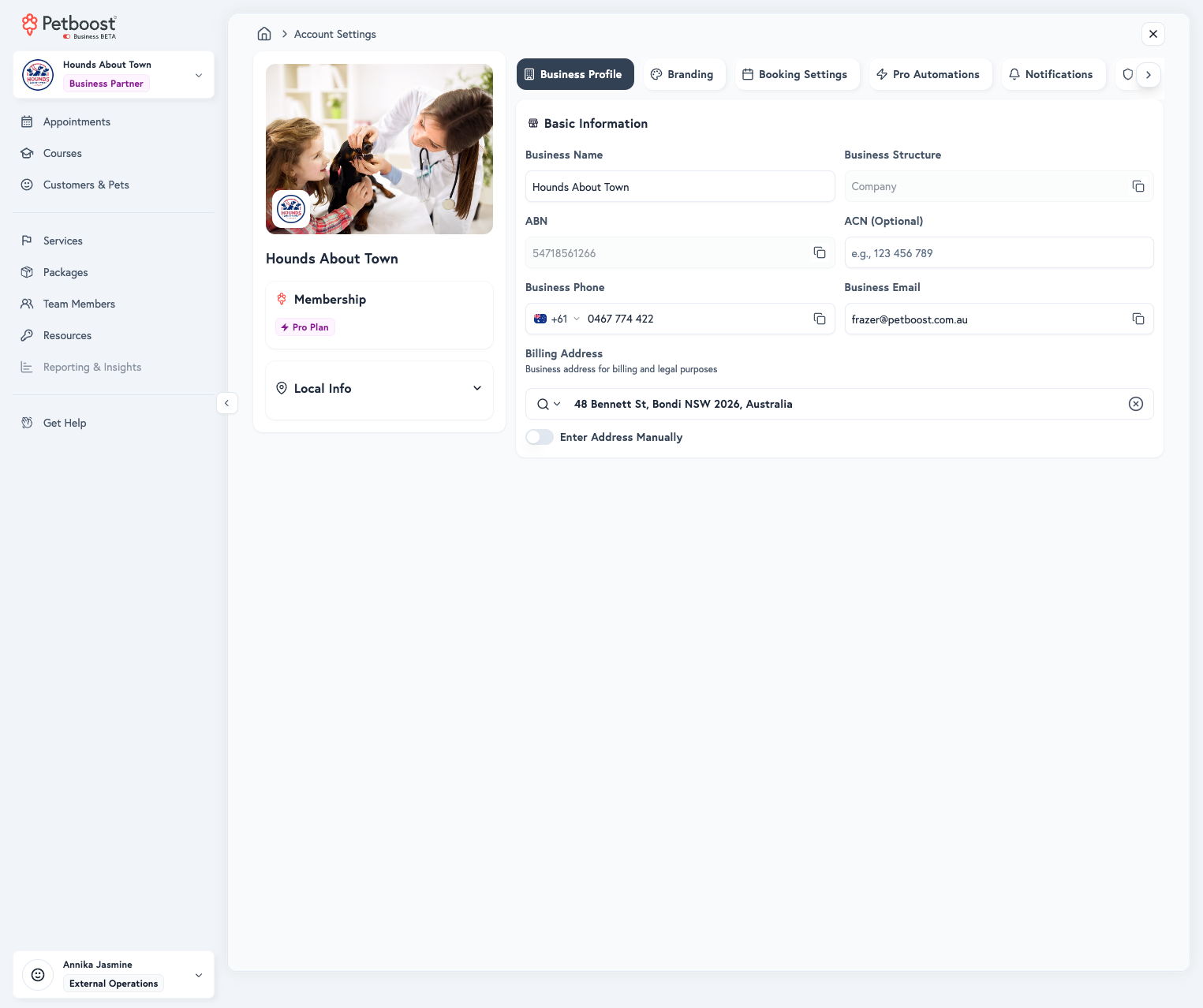
Business Profile
Your business profile contains essential information about your business that appears on invoices, booking pages, and legal documents.
Edit basic information
- Open Settings > Business Details
- Open the Details tab
- Under Basic Information, edit Business Name. A name change updates the name on the booking page and messages
- Read Business Structure. It is locked after setup
- Read ABN. It is locked after setup. Tap the field to copy it
- If your company has an ACN and the field is empty, enter ACN (Optional). Once saved, it locks
- Enter Business Phone
- Enter Business Email
- Enter Billing Address. Start typing to search, or enter the address by hand
- Under Start Appointment Calendar on, choose Monday or Sunday
- Select Publish Changes
Business Name is editable. Changing it updates the name on the booking page and messages.
ABN is locked after setup. You cannot edit it on this page.
Edit About
- Open Settings > Business Details
- Open the About tab
- Under About Your Business, edit Business Description
- Optional: add Badges. To put a chip on the page, leave Show on listing selected. To put it on team cards only, select Show on team cards and tick the people
- Select Amenities that apply
- Optional: enter Announcement
- Optional: set Expiry Date (Optional) and Expiry Time
- Select Publish Changes
The third tab is Hours. Open it to set business hours. Location address is derived from Billing Address. It is not a separate field.
Basic Information
Business Name
- Your registered business name
- Appears on all customer-facing documents
Business Structure
- Legal entity type (Company, Sole Trader, Partnership, Trust)
- Set during account creation and cannot be changed
ABN (Australian Business Number)
- Required for Australian businesses
- Displayed on invoices and receipts
- Locked after initial setup
ACN (Australian Company Number) (Optional)
- For registered companies only
- Additional identification for compliance
Business Phone
- Main contact number for your business
- Country code selector for international numbers
- Displayed on booking pages and communications
Business Email
- Primary business contact email
- Used for customer communications and notifications
Billing Address
Your business address for billing and legal purposes.
Options:
- Autocomplete Search - Start typing to find your address
- Manual Entry - Toggle to enter address manually
Branding
Create a cohesive brand identity across all customer touchpoints with your logo suite, color scheme, and typography.
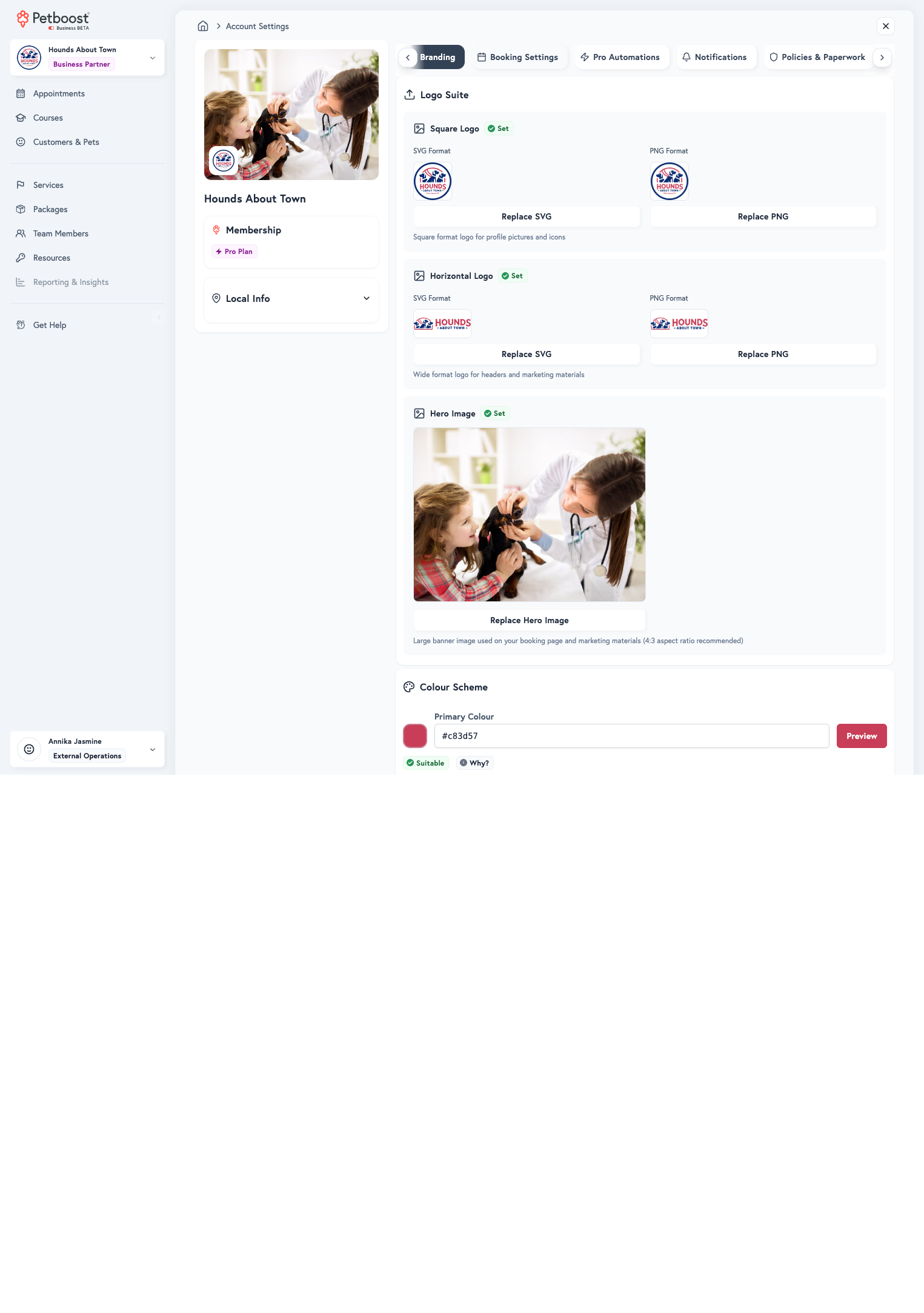
Logo Suite
Square Logo
- Used for profile pictures, icons, and thumbnails
- Best format: 1:1 aspect ratio (e.g., 512x512px)
- Upload both SVG (vector) and PNG (raster) formats
Horizontal Logo
- Used for headers, emails, and marketing materials
- Best format: Wide rectangular (e.g., 1200x400px)
- Upload both SVG and PNG formats
Hero Image
- Large banner image for your booking page
- Recommended: 4:3 aspect ratio
- Creates visual impact on customer-facing pages
Best Practices:
- Use high-resolution images
- Ensure logos work on both light and dark backgrounds
- SVG format provides better scaling and quality
- PNG format ensures compatibility across all platforms
Color Scheme
Define your brand colors that appear throughout customer-facing interfaces.
Primary Color
- Main brand color
- Used for headers, primary buttons, and key elements
- System validates accessibility (contrast ratio)
Primary Button Color
- Color for main action buttons
- System shows "Suitable" or "Unsuitable" based on accessibility
- Use "Magic Match Closest" if unsuitable to find nearest accessible color
Secondary Color
- Supporting brand color
- Used for secondary elements and accents
Secondary Button Color
- Color for secondary action buttons
- Must meet accessibility standards
Accessibility Validation:
- Petboost automatically checks color contrast ratios
- "Suitable" = Meets WCAG accessibility standards
- "Unsuitable" = Poor contrast, may be hard to read
- Click "Why?" to understand accessibility requirements
Typography
Font Family Name
- The font name (e.g., "Inter", "Roboto", "Open Sans")
- Must match exactly what's in the font URL
Font URL
- Link to Google Fonts or custom font hosting
- Example:
https://fonts.googleapis.com/css2?family=Inter
Set branding field by field
- Open Settings > Branding
- Under Logo Suite, upload Square Logo and Horizontal Logo. Advanced uploads use Square Logo (SVG), Square Logo (PNG), Horizontal Logo (SVG), and Horizontal Logo (PNG)
- Upload Hero Image, or tap Replace Hero Image / Upload Hero Image
- Under Colour Scheme, set Primary Colour, Primary Button Colour, Secondary Colour, and Secondary Button Colour
- Optional: set Font Family Name and Font URL
- Under Social Media & Marketing, enter Website URL, Facebook URL, Instagram URL, Google Review URL, and Video on your booking page
- Optional: set Conversion tracking. See Conversion tracking
- Select Publish Changes
There is no working Reserve with Google toggle.
Social Media & Marketing
Facebook URL
- Link to your business Facebook page
- Displayed on booking page footer
Instagram URL
- Link to your business Instagram profile
- Displayed on booking page footer
Video on your booking page
- Link to YouTube, Vimeo, or Instagram video
- Auto-plays in your booking page hero section
- Shows potential customers your space, team, and the care you provide
- For full booking page setup, see the Your Booking Page guide
Conversion tracking
If you run Google Ads, Meta ads, or Google Analytics 4, paste your own IDs under Settings > Branding, in Advanced options > Conversion tracking. Petboost fires booking events on the booking form. Leave a field blank to turn that platform off.
Do not paste a Google Tag Manager container ID (GTM-...) or a full tag snippet.
The full click path for each platform is in Conversion tracking.
Key Setup Steps
Initial Setup Checklist
When first setting up your account:
- ✅ Business Details - Complete all required fields (name, ABN, phone, email, address)
- ✅ Logo Suite - Upload square and horizontal logos in both SVG and PNG
- ✅ Hero Image - Add a professional banner image
- ✅ Color Scheme - Define primary and secondary colors with accessible contrast
- ✅ Typography - Set custom font if desired (optional)
- ✅ Social Media - Add Facebook and Instagram links
Best Practices
Business Profile:
- Keep contact information up to date
- Use a professional business email (not personal Gmail/Outlook)
- Double-check ABN accuracy before locking it in
Branding:
- Maintain consistent colors across all branding materials
- Test logos on both light and dark backgrounds
- Use professional photography for hero images
- Choose accessible colors for better user experience
- Select web-safe fonts for fast loading
Tips:
- Use high-quality, compressed images to maintain fast page loads
- Keep branding consistent with your website and marketing materials
- Update hero images seasonally to keep content fresh
- Preview changes on your booking page before finalizing
Common Questions
Q: Can I change my ABN after setting it up? A: No, the ABN is locked after initial setup for legal and tax compliance. Contact support if you need to change it due to business restructuring.
Q: What image formats are supported? A: Logos support SVG and PNG. Hero images support JPG, PNG, and WebP formats.
Q: What happens if my button color is "Unsuitable"? A: Unsuitable colors have poor contrast ratios and may be hard to read. Use the "Magic Match Closest" button to find the nearest accessible color that maintains your brand identity.
Q: Do I need to set up typography? A: No, typography is optional. Petboost uses a default web-safe font if you don't specify one.
Q: How do I see how my branding looks?
A: Visit your public booking page to see how customers see your branding. Copy the short link from Settings > Quick Copy Links > Booking Page Link (https://pbbook.now/{your-business-name}).
Related FAQs
Have questions about settings? See these commonly asked questions:
- Can I customise what appears on invoices?
- Can I change my ABN after it's set?
- What image sizes work best?
- Why is my button color "Unsuitable"?
Next Steps
Once your business profile and branding are set up:
- Configure Booking Settings to control how customers book
- Set up Automatic Actions to save time on appointment workflows
- Configure Notifications to keep customers informed
- Review Policies & Paperwork for legal requirements
- Set up Payment Settings to accept online payments
- Configure Services to set up your service offerings