
Learn how to create and manage appointments in your Petboost calendar. This guide covers the two main booking modes and the complete appointment creation workflow.
Quick Start: Mission Control
New to Petboost? For the fastest way to create appointments and manage daily operations, check out Mission Control - your operational dashboard with quick actions for common tasks.
Mission Control Quick Actions:
- New Appointment - One-click access to appointment creation
- Quick Sale - Process sales with pet selection
- Create Stay - Book overnight boarding instantly
- Block Time - Quick calendar blocking
Mission Control is optimised for daily operations and mobile use, while this Appointments page provides detailed calendar scheduling and drag-and-drop time management.
See: Mission Control Getting Started for the quick-start alternative.
Creating a New Appointment
Click the New button in the top-right corner of the Appointments page to access the creation menu:
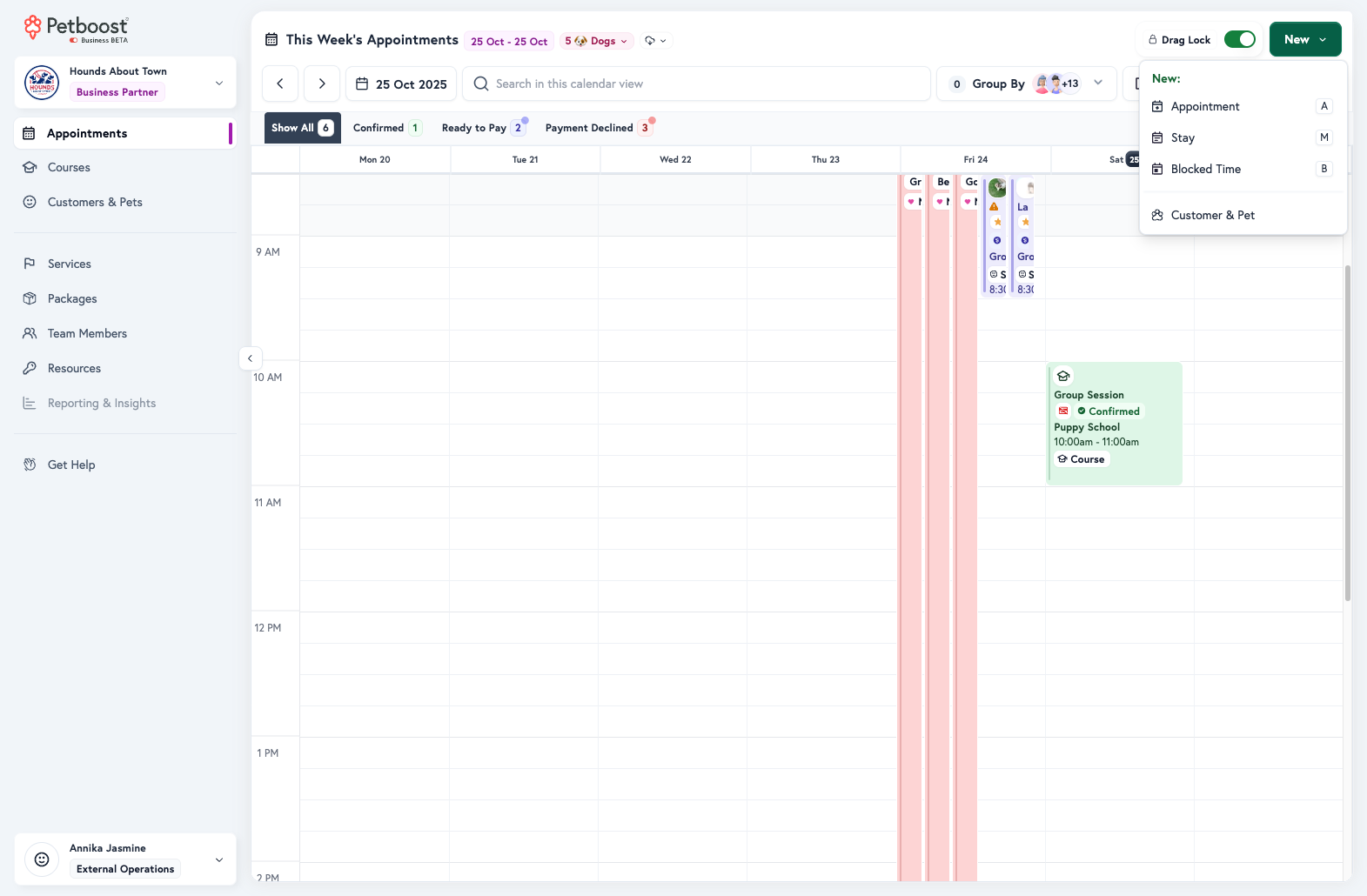
Four creation options:
- Appointment (Keyboard:
A) - Regular service booking - Stay (Keyboard:
M) - Multi-day boarding/daycare - Blocked Time (Keyboard:
B) - Block calendar availability - Customer & Pet - Quick customer creation
Two Booking Modes
When creating appointments, choose between two scheduling modes:
1. Magic Schedule (Recommended)
System finds available time slots automatically based on:
- Team member availability
- Resource availability
- Service requirements
- Working hours
- Existing bookings
Best for:
- Multi-pet appointments
- Services requiring specific team members or resources
- Avoiding scheduling conflicts
- Maintaining optimal calendar utilization
How it works:
- Select customer and pets
- Choose services for each pet
- With Magic Availability Check on, available times load automatically
- System presents conflict-free slots
- Select preferred time
- Book instantly
2. Quick Force
Manual scheduling without availability checks.
Best for:
- Emergency bookings
- Walk-in customers
- Override calendar conflicts
- Experienced schedulers who know availability
How it works:
- Select customer and pets
- Choose services
- Manually enter date and time
- Assign team members and resources
- Book (system shows warnings if conflicts exist)
Step-by-Step: Create a Regular Appointment
Step 1: Choose Customer & Pets
- Click New → Appointment
- Search and select customer
- Click the magnifying glass to open search
- Type customer name, email, or phone
- Select from results
- Select pets (checkboxes appear after customer selection)
- Check each pet to include
- All checked pets will receive services
Step 2: Choose Services
For each selected pet:
- Click "Choose service" dropdown
- Select appropriate service
- Service pricing and duration display automatically
Multi-Pet Pricing:
- Discounts apply automatically if configured
- Total updates in real-time
Step 3: Set Date & Time
Magic Availability Check on:
- Available times load automatically
- System analyzes availability
- Select from presented time slots
- All fields auto-fill (team, resources, duration)
Quick Force Mode:
- Enter Date manually
- Enter Start Time and End Time for each service
- Assign team members (optional or required based on service)
- Assign resources (optional or required based on service)
Step 3b: Add Add-Ons (Optional)
After selecting a base service, you can browse and add add-on services using the add-on picker that appears below the service selection.
- Browse available add-ons in a scrollable carousel, or use the search field to find a specific add-on by name
- Eligibility filtering - only add-ons that apply to the selected pet and base service are shown; ineligible add-ons are hidden automatically
- Pricing displayed - each add-on card shows its price so you can see the cost before adding
- Add or remove add-ons with a single click; the appointment total updates in real time
The add-on picker only appears when a base service is selected. If no add-on services are configured for your business, this section is not shown.
Step 4: Add Details (Optional)
Location:
- Select service location
- For mobile services: Enter customer address
Notes:
- Customer instructions (visible to customer)
- Internal notes (staff-only)
Attachments:
- Upload photos or documents
Step 5: Review & Create
Review summary:
- Pets & Services: Verify all selections
- Date & Time: Confirm schedule
- Team & Resources: Check assignments
- Total Price: Review pricing including discounts
Action buttons:
- Create Appointment - Standard creation
- Create & Notify Customer - Creates and sends confirmation
- Save as Draft - Save for later completion
Understanding Appointment Statuses
Appointments progress through these statuses:
| Status | Meaning | Actions Available |
|---|---|---|
| Pending | Awaiting confirmation | Confirm, Decline, Edit |
| Confirmed | Accepted and scheduled | Start, Cancel, Reschedule, Edit |
| In Progress | Service currently being performed | Complete, Add Notes |
| Completed | Service finished | Finalize Invoice, Issue Receipt |
| Ready to Pay | Invoice finalized, awaiting payment | Charge Payment, Issue Refund |
| Paid | Payment received successfully | Issue Receipt, Refund |
| Payment Declined | Payment method failed | Retry Payment, Change Method |
| Cancelled | Appointment cancelled | Rebook |
| Declined | Business declined the booking | Archive |
Quick Tips
Keyboard Shortcuts:
A- New AppointmentM- New StayB- Block TimeEsc- Close dialog
Best Practices:
- Use Magic Schedule for conflict-free booking
- Enable Automatic Actions to reduce manual steps
- Add customer notes for special requests
- Verify payment method before finalizing
Common Issues:
- "No slots available" → Use the Availability Troubleshooter to understand why
- "Service not available" → Verify service is active and meets pet eligibility
- Multiple pets, one fails → Check individual pet restrictions (age, weight, breed)
Need more help? Select See Availability Reasons under the calendar to open the Availability Troubleshooter - it shows exactly what the booking engine considered.
Related FAQs
Have questions about appointments? See these commonly asked questions:
- How do I resend payment information to a customer?
- Why does the customer see "checkout" but we call it "check out"?
- What's the difference between Magic Schedule and Quick Force?
- Can I book multiple pets in one appointment?
- How do I pause a recurring series?
- How do I skip a week in a recurring series without cancelling it?
What's Next?
- Calendar Views & Navigation
- Managing Appointments
- Recurring Appointments
- Stay Appointments
- Availability Troubleshooter - Understand why slots are or aren't available