
Resources help you manage capacity and make sure the right space or equipment is free for each booking.
A resource can also be a standalone schedule. It is booked like a team member, but it is not a person: it has no login, phone number or email, only working hours and a capacity. A home daycare that runs meet and greets on Tuesday to Thursday afternoons can create a "Meet and greet" resource for them. On the calendar each resource is its own column, so meet and greets, daycare and boarding sit side by side, meet and greets never use daycare capacity, and you can block one resource over a holiday while the others stay bookable.
Resource types
A resource is one of three types: Location, Asset or Service Schedule. Each has its own capacity, working hours and services.
| Type | What the product says | Examples | Address |
|---|---|---|---|
| Location | Physical locations like rooms, buildings, or areas | Kennels and boarding rooms, grooming stations, training rooms, play areas, reception areas | Optional |
| Asset | Equipment, tools, or other physical assets | Pet transport vehicles, mobile grooming vans, equipment carts, portable training tools | None |
| Service Schedule | Service schedules | A separate calendar, such as meet and greets | None |
A Service Schedule is booked like a team member but is not a person, place or piece of equipment. Schedule Setup calls these Shared Calendars.
Create a resource
Create a resource for each space, piece of equipment or separate calendar that limits how many bookings you can take.
- Open Resources, select Add New, then New Resource.
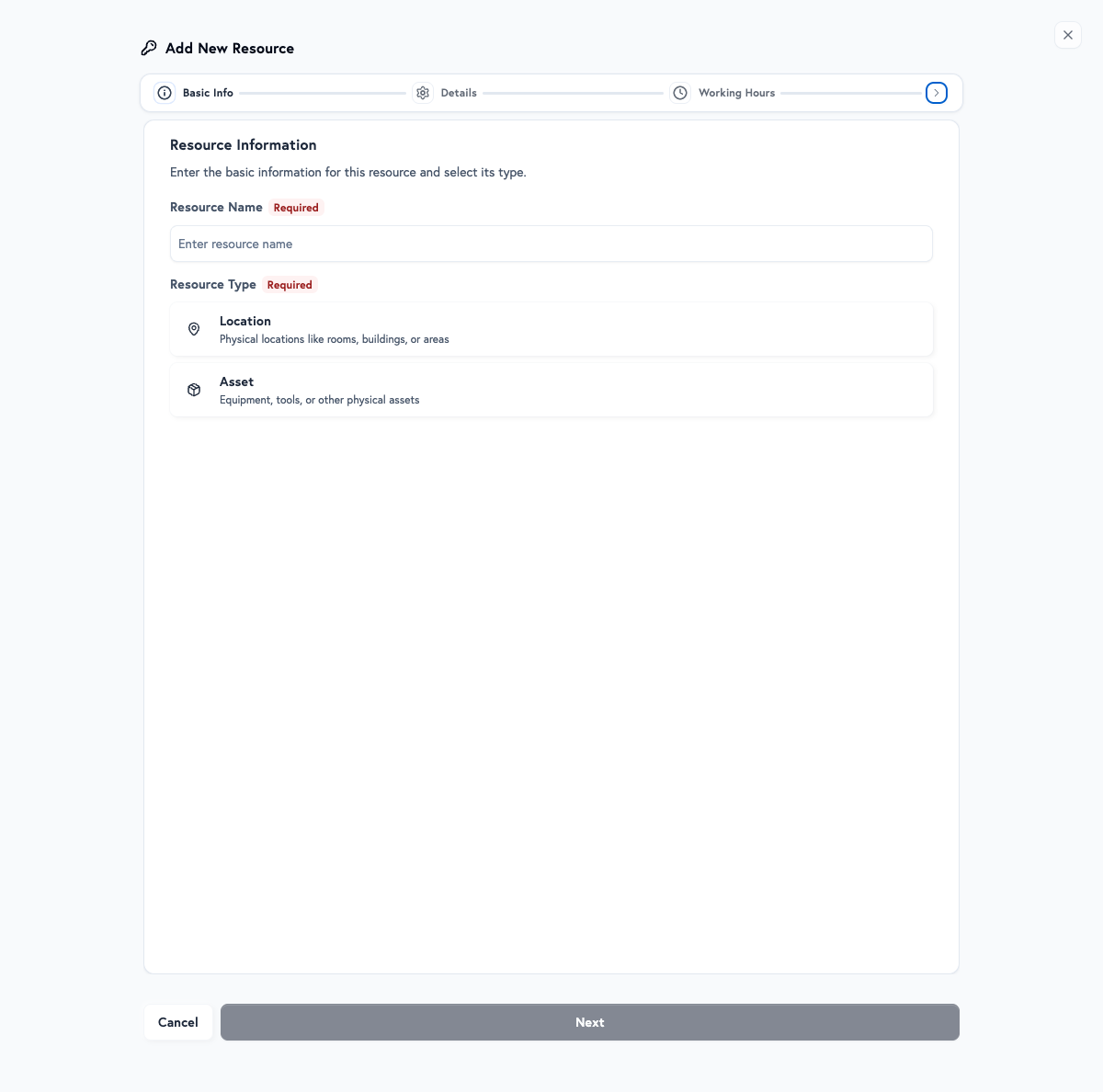
- On Basic Info, enter a Resource Name, such as Kennel 1, Van 1 or Grooming Station A.
- Choose the Resource Type: Location, Asset or Service Schedule.
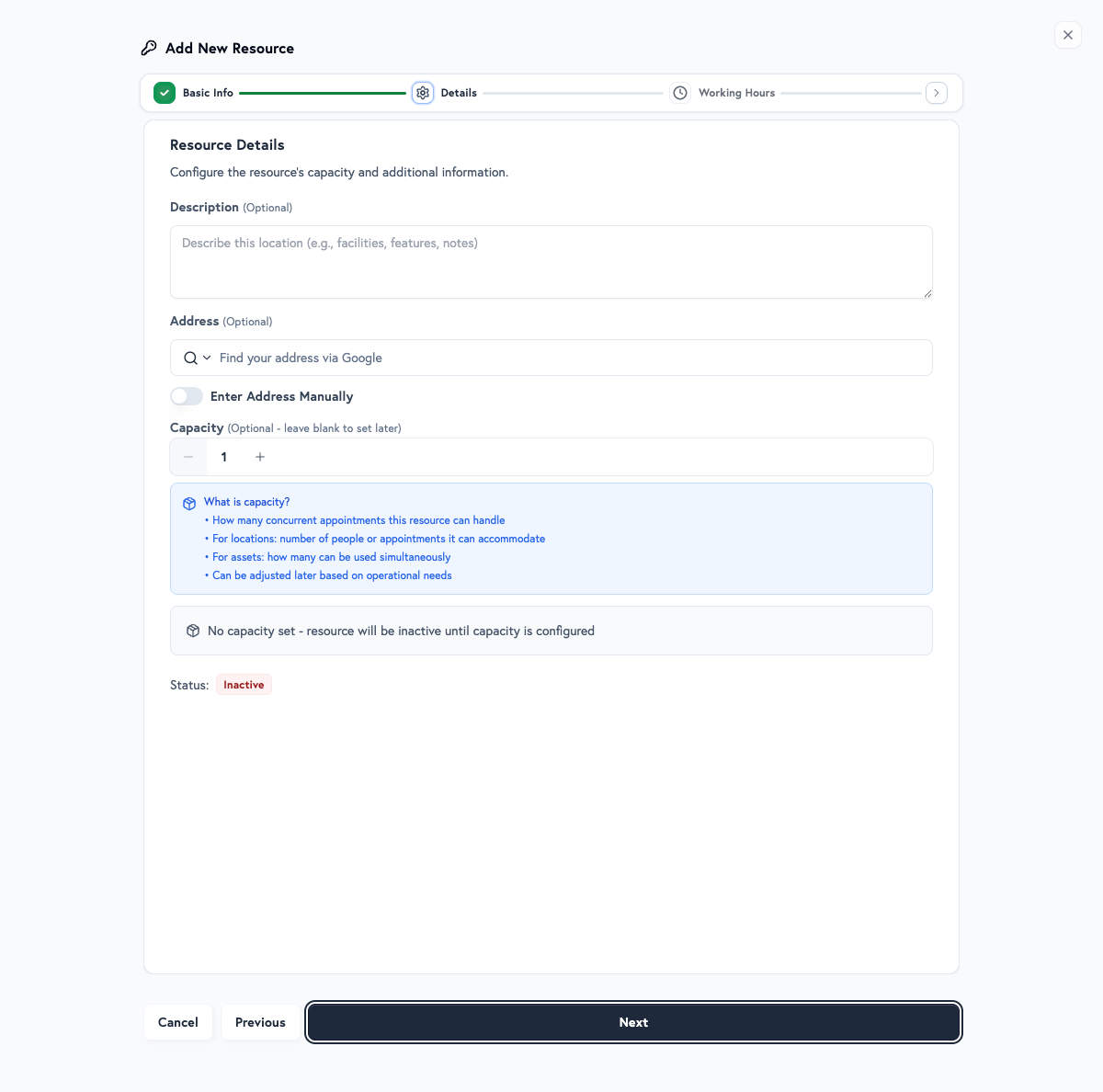
- Select Next. On Details, set Capacity, how many appointments the resource can handle at the same time, or leave it to set later.
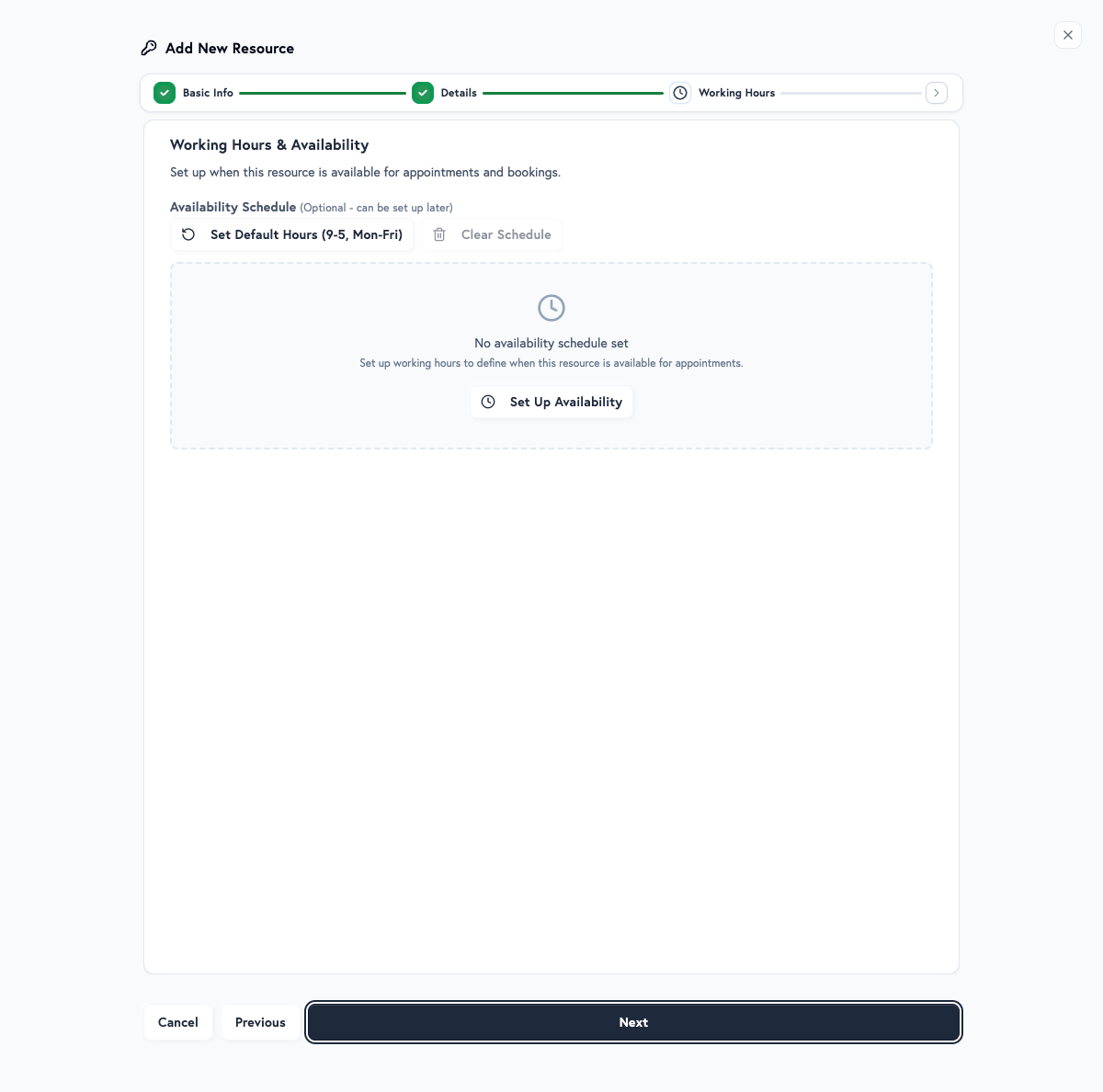
- Select Next. On Working Hours, select Set Up Availability and change the days and times, or leave it empty to set later.
- Select Next. On Assigned Services, choose the services that can use this resource.
- Select Create Resource.
To start from a resource you already have, select Clone from another resource on Basic Info, or Clone This Resource on its page. Bulk Import Resources & More, under Add New, opens the bulk import template, a spreadsheet.
Basic info
Resource Name and Resource Type are required. Name resources so the team can tell them apart: be descriptive, such as Large Dog Kennel or Mobile Grooming Van, use a consistent pattern, such as Kennel 1, Kennel 2 and Kennel 3, and include a capacity hint where it helps, such as Small Dog Kennel (Max 2 pets).
Under Advanced options, Photo (Optional) takes the same square crop as a team member photo, and Calendar Colour (Optional) is the colour of this resource's appointments when the calendar's Colour Mode is Resource.
Details
Description (Optional) explains what the resource is for. A Location can also have an Address (Optional).
Capacity is how many appointments the resource can handle at once: for a location, how many it can accommodate, and for an asset, how many can use it at the same time. It is not a daily limit. As a guide, an individual kennel takes 1 to 2 pets, a play area 4 to 8, and a group area 10 or more, and a vehicle's capacity depends on its size and safety regulations. With capacity set, Allow more siblings side-by-side lets pets from the same family share places beyond it. With no capacity set, the resource is inactive until you add one.
Working hours
Set Up Availability and Set Default Hours (9-5, Mon-Fri) both fill in Monday to Friday, 9am to 5pm, and Clear Schedule empties the schedule again. Kennels for overnight stays are often available around the clock, grooming stations follow your opening hours, play areas may have shorter hours for noise, and vehicles are usually available during opening hours only. A session can be set to 24 Hours in its Advanced options on Schedules & Sessions.
To give a resource different hours for a date or a date range, open it after you create it and choose Working Hours, then Special Dates, then Create Special Dates.
Assigned services
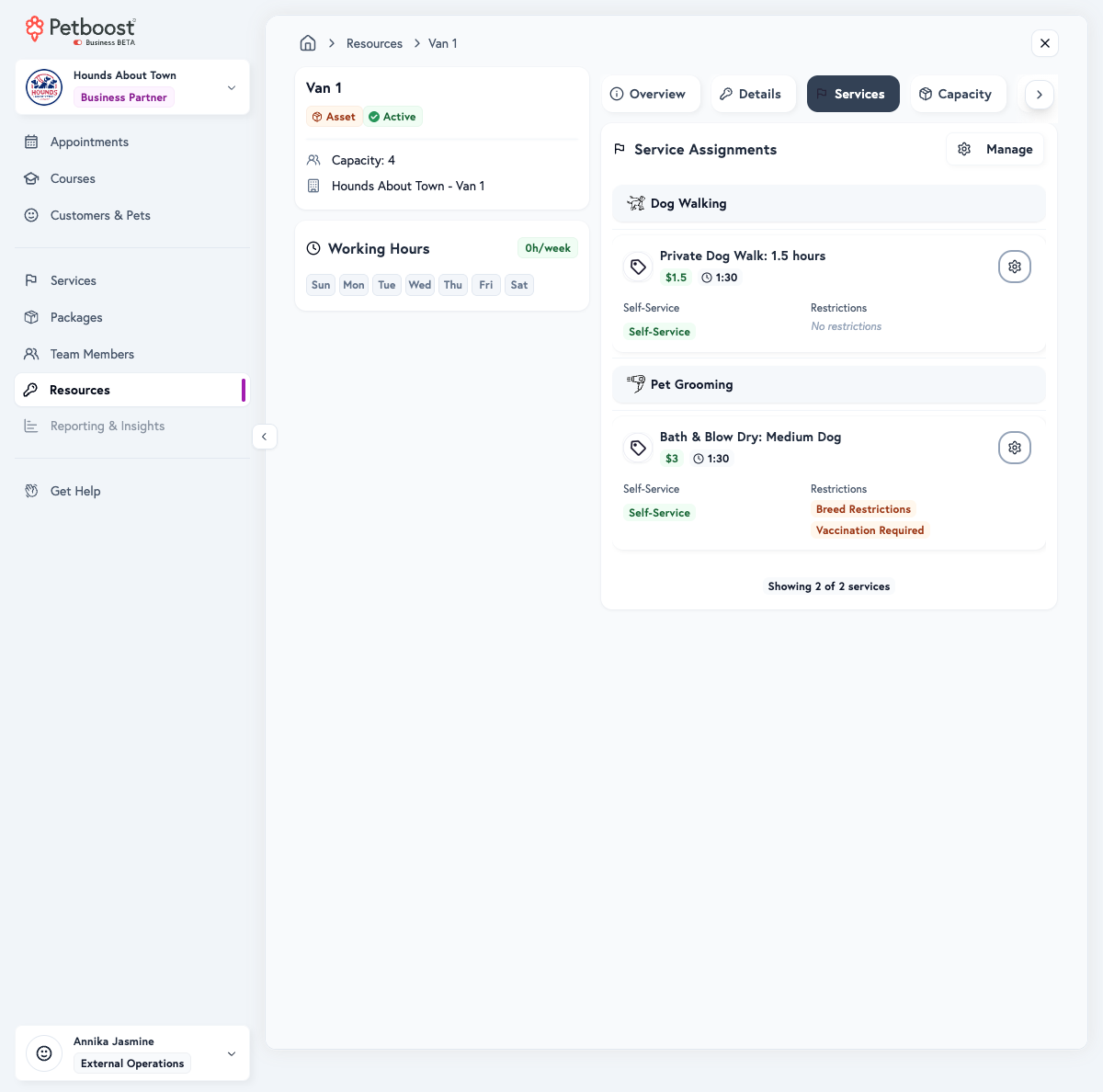
Choose services with Quick Add by Category or Select Individual Services. Only assign services that match the resource, to avoid scheduling conflicts: kennels for boarding and daycare, grooming stations for grooming and bathing, play areas for exercise and socialisation, and vehicles for transport and mobile services.
Find a resource
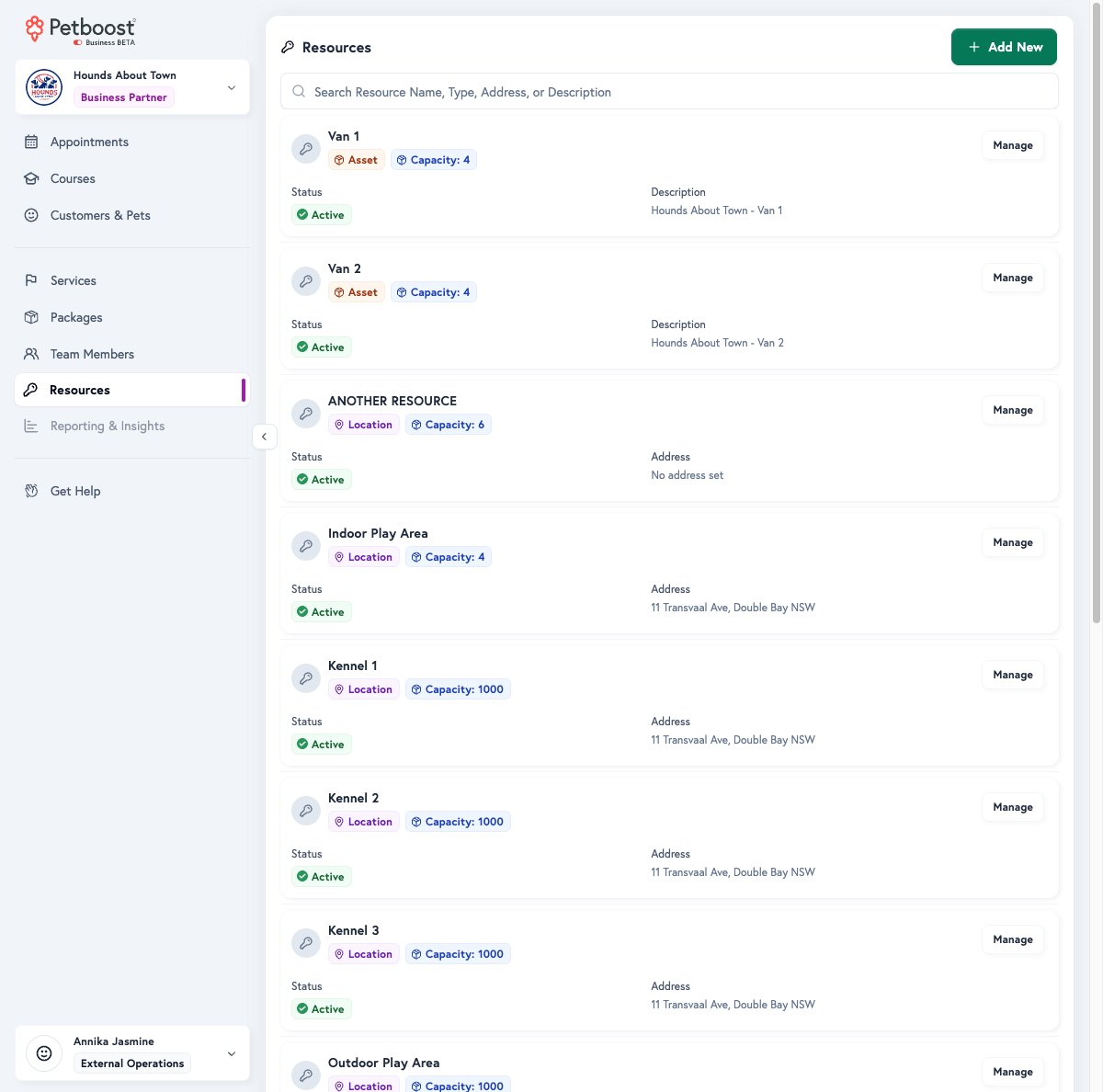
The list shows each resource's name, its type, Max and its number At Once (or No Capacity Set), and an address for a location or a description for any other type. Once a resource has working hours, or a service customers can book online uses it, the list also marks it Bookable or Not Bookable.
- Open Resources.
- To find a resource, type in the search box. It matches the name, the type, the address and the description.
- To see archived resources, open Filters and switch on Include Archived Resources. They show an Archived badge.
- Optional: open Sort & Group to group by Resource Type, or sort by Name or Capacity.
- Select Manage on the resource.
Change a resource's details
A change to a resource applies to new bookings. Existing appointments are not changed.
- Open Resources and select Manage on the resource.
- Choose the section to change. On a section, Jump to moves between them.
- Make the change. It waits in Pending Changes at the foot of the page.
- Select Publish Changes, tick the box in Before You Publish, then select Publish Changes.
A resource has these sections:
- Appointments: the appointments booked into this resource
- Details: Resource Name, Description, Resource Type and, for a location, Address
- Services: the services assigned to this resource
- Capacity: Pets at a Time and the same-family limit
- Working Hours: the working hours schedule and special dates
- Blocked Times: periods when the resource is unavailable, such as maintenance
Set how many pets a resource takes at a time
Set this to the number of pets the space or equipment can hold at the same moment.
- Open Resources and select Manage on the resource.
- Choose Capacity.
- Set Pets at a Time.
- Optional: switch on Allow more siblings side-by-side and set the Same-family limit.
- Select Publish Changes, tick the box in Before You Publish, then select Publish Changes.
Set it from the space and safety, taking account of pet size and temperament, and review it as your business grows. See Capacity Management.
See each resource as a calendar column
Group the calendar by resource to see each room, pen, van or schedule side by side.
- Open Appointments.
- Open Group By and choose Resources.
- Optional: switch on Show Total Capacity to see each column's bookings against the resource's capacity.
Team Members and Resources combine: choose both for a column per person and a column per resource.
Archive a resource
Archiving a resource hides it from booking and scheduling. Its history and reports stay, and you can restore it later. There is no "Move to [name] & archive" path on a resource: if appointments still sit on it, resolve them first.
- Open Resources and select Manage on the resource.
- Select Archive Resource.
- If appointments block the archive, Resolve Blocking Appointments opens at the Resolve Appointments step. Under Action, choose Cancel or Void.
- Select the appointments, then select Cancel or Void with the number of appointments.
- Select Continue to Archive.
- In Archive and the resource's name, tick I understand this will archive and the name, then select Archive Resource.
Cancel marks the appointments as cancelled, with no fees and no notifications. Void sets the invoice to zero, with no charge and no notifications. If some cannot be resolved, Skip remaining and archive anyway archives the resource regardless. Unarchive Resource brings an archived resource back.
Troubleshooting
A resource does not appear when you book
Open the resource on Resources and check:
- The resource is not archived, and has Pets at a Time set
- Its Working Hours cover the time you are booking
- It is assigned to the service, on its Services section or on the service's Team & Resources tab
A resource's capacity looks wrong
Open Capacity on the resource and check Pets at a Time. It is how many pets can be booked at the same time, not a daily total.
Bookings clash on a resource
Check the resource's Working Hours and Blocked Times, and the services assigned to it. A service that should not use the resource can be removed from its Services section.
Related articles
- Capacity Management: resource capacity and utilisation
- Working Hours & Blocked Times: resource availability and maintenance
- Service-Resource Assignment: match services to the right resources
- Resource FAQ: common questions answered
Next steps
- Assign resources to a service, and set its requirements and eligibility, on Services
- Set up team members and their capacity on Team Members
- Book appointments into your resources on Appointments
- Assign resources to classes on Courses
- Manage customer relationships on Customers & Pets
- Sell and track prepaid credits on Packages
- Set booking rules in Booking Settings, messages in Notifications and automated workflows in Automatic Actions, all under Settings
Need help? Contact support or select Get Help in your dashboard to chat with our team.